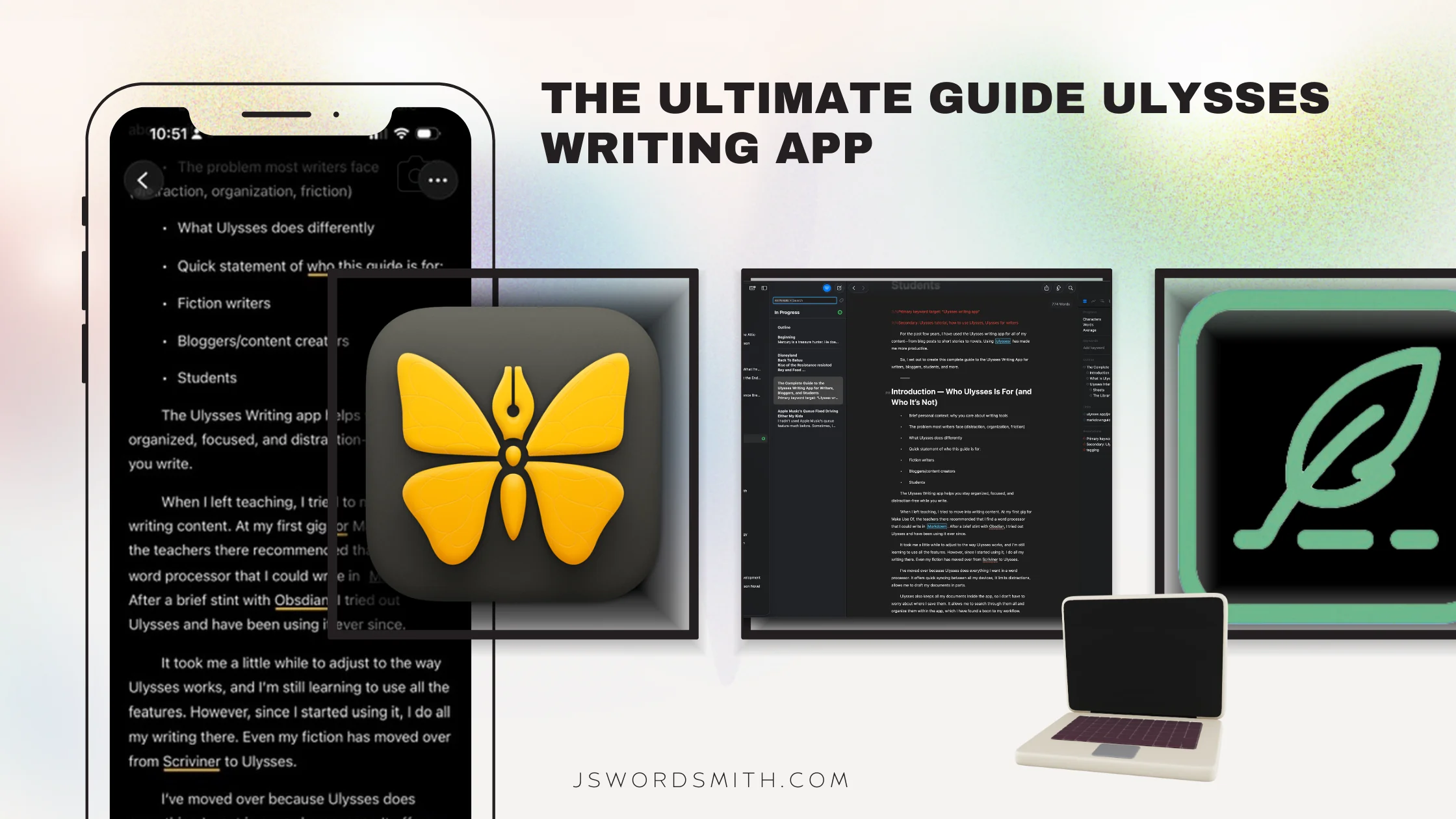
The Ulysses writing app is one of the best apps for Mac, iPad, and iPhone that lets you break large writing projects into manageable pieces, stay organized across every stage of your process, and keep all your writing in one place. It’s the app that finally made my workflow click.
I struggled to find a writing app that worked the way I think. Traditional folder systems buried documents and constantly pulled me out of the writing flow. Apps started to slow to a crawl when documents grew too large. I lost faith that my documents would sync between devices quickly enough to get my thoughts out, or that all my documents would be there at all.g
Then I found the Ulysses writing app.
For the past few years, I have used Ulysses for all of my content—from blog posts to short stories to novels. Using Ulysses has made me more productive, organized, and focused.
So, I set out to create this complete guide to the Ulysses Writing App for writers, bloggers, students, and anyone who wants a streamlined writing workflow.
Introduction — Who Ulysses Is For
The Ulysses Writing app helps you stay organized, focused, and distraction-free.
When I left teaching, I moved into writing content professionally. My first gig at Make Use Of taught me the value of writing with Markdown. After a brief stint with Obsidian, I tried out Ulysses and have been using it ever since.
If you’re looking for a distraction-free writing app that works across Mac, iPad, and iPhone, Ulysses might be exactly what you need.
Try the demo and use my link to get 25% of the yearly subscription
It took me some time to adjust to the way Ulysses works, but now all my writing lives in the app—including fiction, which I moved over from Scrivener. Ulysses syncs seamlessly across devices, lets me write in smaller, manageable sheets, and keeps everything organized in one place.
I even wrote a guide to help you get started and learn how the app works.
What Is the Ulysses Writing App and How Does It Work?
Ulysses is a plain-text word processor built around Markdown, designed to help writers focus on words instead of formatting. It’s available for Mac, iPad, and iPhone, and uses iCloud to sync all your documents instantly.
I loved how Scrivener let me break documents into different files, but the syncing felt complicated and slow. Obsidian looks and acts like Ulysses but doesn’t offer as many writing features without plugins, and the export felt overly complicated.
Key Features at a glance:
Ulysses offered everything I wanted in a writing app, but the synergy between all the features and the way it utilizes the Apple ecosystem, is what kept me using it. Here are the features that make it stand out from other writing apps.
- Seamless iCloud Sync: Native Mac, iPhone, and iPad apps that keep your work updated across all devices instantly.
- Markdown-Based Editor: A plain-text environment that lets you apply style and structure without ever leaving the keyboard.
- Advanced Organization: Use sheets, groups, and projects to break large documents into manageable pieces.
- Built-In Goals: Set daily or project-level word count targets to track your progress as you write.
- Direct Publishing: Send your finished drafts directly to WordPress or Ghost, complete with tags and images.
- Distraction-Free Mode: A customizable, clutter-free interface that helps you focus entirely on your words, especially when you turn on a writing Focus Mode.
- Smart Filters: Use tags and keywords to categorize your work by revision stage, content type, or topic.
- Siri AI: The latest version of Ulysses offers support for Siri AI and write with Siri.
Ulysses lets you type freely while applying style and structure without leaving the keyboard. It’s simple, fast, and focused on helping you get words on the page.
It’s one of the best apps because it works the same across all of Apple’s devices. That way, I can use it at home on my Mac or throw my iPad in my writer’s travel bag and pick up right where I left off.
Ulysses Interface Explained in 5 Minutes
There are four main sections: Library, Sheets, Editor, and Inspector. Once I learned to navigate these, my productivity skyrocketed.

Sheets
Sheets are where your writing happens. A new sheet is like a blank document waiting for words—but it’s more than that.
- Break long documents into multiple sheets
- Rearrange sheets to adjust flow
- Glue sheets together when ready for export
With the Shortcuts improvements announced at WWDC 2026, it may soon be possible to automate sheet creation directly from a voice command or shortcut — I’m exploring this in my WWDC 2026 for writers roundup.
The Library
The Library organizes your sheets into folders, projects, and filters. You can customize it with colors and icons. This has helped me so much when I write, as I can scan through my library within the app and not have to leave to search for the document I want.
- Keep all your documents in one place
- Create projects to focus on a single manuscript or topic
- Use tags and filters to categorize by revision stage, content type, or keywords
Projects are perfect for longer works like novels—they keep research, notes, and writing all together without distractions.
Read how I structure my Ulysses Library as a Kanban board to manage every project from first draft to published.
Editor
The Editor is where typing happens.
- No toolbars clutter your view
- Supports Markdown for styling: bold, italics, lists, code
- Personalize your experience with themes, fonts, and spacing
- Leave notes in the text to flag edits or ideas
- Word count tracking and distraction-free mode
Goals
One of my favorite features is writing goals.
- Set daily or project word count targets
- Track progress as you write
- Useful for fiction writers, bloggers, or students hitting word limits
Read how I set 500-word daily goals or check out my guide on setting goals inside the Ulysses App.
Dashboard
The Dashboard gives you project stats at a glance — word count, reading time, outline structure, keywords, and attachments — so you can see the shape of your work instantly.
Who Should Use the Ulysses Writing App?
Ulysses allows you to write in parts, so you don’t have a giant document to wrangle. It offers things like word count and revision modes. It can set word targets, including daily goals or project goals.
Plus, since Ulysses syncs so quickly with iCloud, you always have your writing with you. Syncing frustrations are one of the biggest issues I’ve had with other writing apps, and I’ve never had a problem with Ulysses.
Ulysses for Fiction Writers
- Break large manuscripts into sheets
- Rearrange chapters easily
- Keep research, character notes, and world-building together
- Export to Word, PDF, or eBook.
Ulysses for Bloggers
- Draft in Markdown for clean HTML export
- Fast, distraction-free typing without browser lag
- Publish directly to WordPress or Ghost, complete with tags and images
Ulysses for Students
- Write essays in chunks, then glue them together
- Track word count goals
- Store research, citations, and notes in one organized project
Who Should Look Elsewhere
Ulysses isn’t for everyone, though. Ulysses is not suited to your workflow if you:
- need live WYSIWYG formatting
- need live screenplay formatting
- dislike Markdown
It’s designed for writers who want to focus on words first, not formatting.
If you’re coming from Scrivener and weighing whether the switch is worth it, I broke down the full comparison — features, tradeoffs, and who each app is really for — in my Scrivener vs. Ulysses post.
Is Ulysses Worth It?

I hate subscriptions. It feels like more are getting added or raising prices every day. That said, I feel like Ulysses has been worth the small price for me. I was lucky enough to use the educational discount when I first discovered Ulysses, but I’m more than happy to pay the small yearly fee to support the development of the app and get new features added.
Subscriptions aren’t going away, but Ulysses is reasonably priced:
- Monthly: $5.99/month
- Yearly: $39.99/year (or $29.99 for your first year with my link)
- Students/teachers: 6 months for $10.99 via educational discount
You can also try Ulysses free for one week before committing.

I use Ulysses every day to produce the work that pays my bills.
Frequently Asked Questions
What is Ulysses, and who is it for?
Ulysses is a plain-text writing app for Mac, iPad, and iPhone built around Markdown and distraction-free focus. It’s best suited for writers who want their work organized in one place — bloggers, fiction writers, students, and anyone tired of fighting their tools instead of writing.
Is Ulysses available on Windows or Android?
No. Ulysses is exclusive to Apple devices — Mac, iPad, and iPhone. If you’re on Windows or Android, you’ll need to look at alternatives like iA Writer or Obsidian.
Does Ulysses require a subscription, and is it worth the cost?
Yes — Ulysses runs on a subscription model at $5.99/month or $39.99/year (your first year is $29.99 with my referral link). I hate subscriptions as much as anyone, but Ulysses has earned its place. I use it daily, it’s constantly improving, and the yearly cost is less than a couple of coffees a month.
Is there a free trial before committing?
Yes — you get a full week free before you’re asked to subscribe. That’s enough time to get a real feel for the workflow.
What’s the difference between a group, a sheet, and a filter?
A sheet is your individual document — where the actual writing happens. A group is a folder that holds multiple sheets, letting you organize projects, chapters, or content types. A filter is a smart view that automatically surfaces sheets based on criteria you set, like a keyword or last-edited date. Think of groups as folders you build manually and filters as folders that build themselves.
What is Ulysses Markdown XL, and do I need to know Markdown to use it?
Markdown XL is Ulysses’ own flavor of Markdown — it extends standard Markdown with some app-specific features like annotations and comments. You don’t need to know it going in. Most formatting happens naturally as you write, and Ulysses makes the syntax feel more intuitive than a plain Markdown editor.
Can I set daily word count goals in Ulysses?
Yes, and it’s one of my favorite features. You can set a daily word target or a project-level goal, and Ulysses tracks your progress as you type. I wrote about how I set 500-word daily goals and what it did for my output — you can read that here.
How does iCloud sync work across Mac, iPhone, and iPad?
Ulysses syncs your entire library through iCloud automatically. Open the app on any device and your writing is there, up to date, no manual steps required. In my experience it’s among the fastest and most reliable syncs of any writing app I’ve used.
Can I use Ulysses offline?
Yes. Ulysses works fully offline — you can write, edit, and organize without an internet connection. Changes sync to iCloud the next time you’re connected.
What happens to my writing if I cancel my subscription?
Your writing doesn’t disappear. If you cancel, Ulysses switches to a read-only mode — you can still access and export everything, you just can’t create or edit. It’s a fair safety net that means your work is never held hostage.
How do I publish directly from Ulysses to WordPress?
Ulysses has built-in WordPress integration. You connect your account once in Settings, and from there you can publish or save a draft directly from the export sheet — title, tags, images, and all. It’s one of the reasons I do all my drafting in Ulysses rather than the WordPress editor.
Can I export to PDF, Word, or EPUB from Ulysses?
Yes — Ulysses can export to PDF, Word (.docx), EPUB, HTML, and plain Markdown. You choose a style template to control formatting, so your exported document looks the way you want without any extra cleanup
Conclusion
Updated: April 1, 2026 to add FAQ section
Ulysses is an app built for writers. It reduces friction, keeps your writing organized, and gets out of the way so you can focus on actually writing. I’ve been doing all my fiction writing in Ulysses for years, and it has become central to my workflow.
While I’m not a fan of subscriptions, Ulysses is reasonably priced and constantly improving. It’s ideal for writers, bloggers, and students who want to streamline their process.
If you’d like to see more of my setup or writing workflow, take a look at my work-from-home desk setup or my writing hub to help you take your writing to the next level. I’m also working on more Ulysses guides—subscribe to the mailing list below to be the first to access them.
I’ve also put together a handy MacBook Buyer’s guide for writers, that goes through each of the models and why I recommend a MacBook Air for most authors. There’s also an iPhone Buying Guide if you’re in the market for a new iPhone.

Leave a Reply