I got the error message MacBook Air storage full.
I should have known better, but I bought this laptop when 256 GB took me pretty far. All my travel devices, iPhone, iPad, and MacBook had 256 GB of storage. While I still have a ton of space on my iPad and iPhone, I ran into issues on my MacBook.
When Apple released an update to macOS, I found that I couldn’t install it because my MacBook only had a few MB of storage left.
I couldn’t just buy a new MacBook. So I set about to figure out a solution. Here’s my journey to save space on my MacBook Air.
How I Reclaimed Space On My MacBook Air—The Short Version
If you need a quick answer, here’s what worked for me:
- Check your storage breakdown first — System Settings → General → Storage. Clear unused apps and old Messages attachments, and turn off Apple Intelligence (Settings → Apple Intelligence & Siri) to reclaim 10+ GB instantly.
- Replace heavy apps with web apps — Canva, and anything else you don’t need offline, works just as well in a browser and takes up zero drive space.
- Get a low-profile external drive — The SanDisk Extreme Fit USB-C sits flush with the MacBook and doesn’t get in the way. Move your Photos library there to reclaim the most space.
The rest of the post has the full story, including what didn’t work and how I got my Photos library to cooperate with the external drive.
Frustration With Apple’s Options
When I first got the message that my storage was running low, I headed over to the storage option in settings. Surprisingly, my biggest area of storage came from my installed apps.
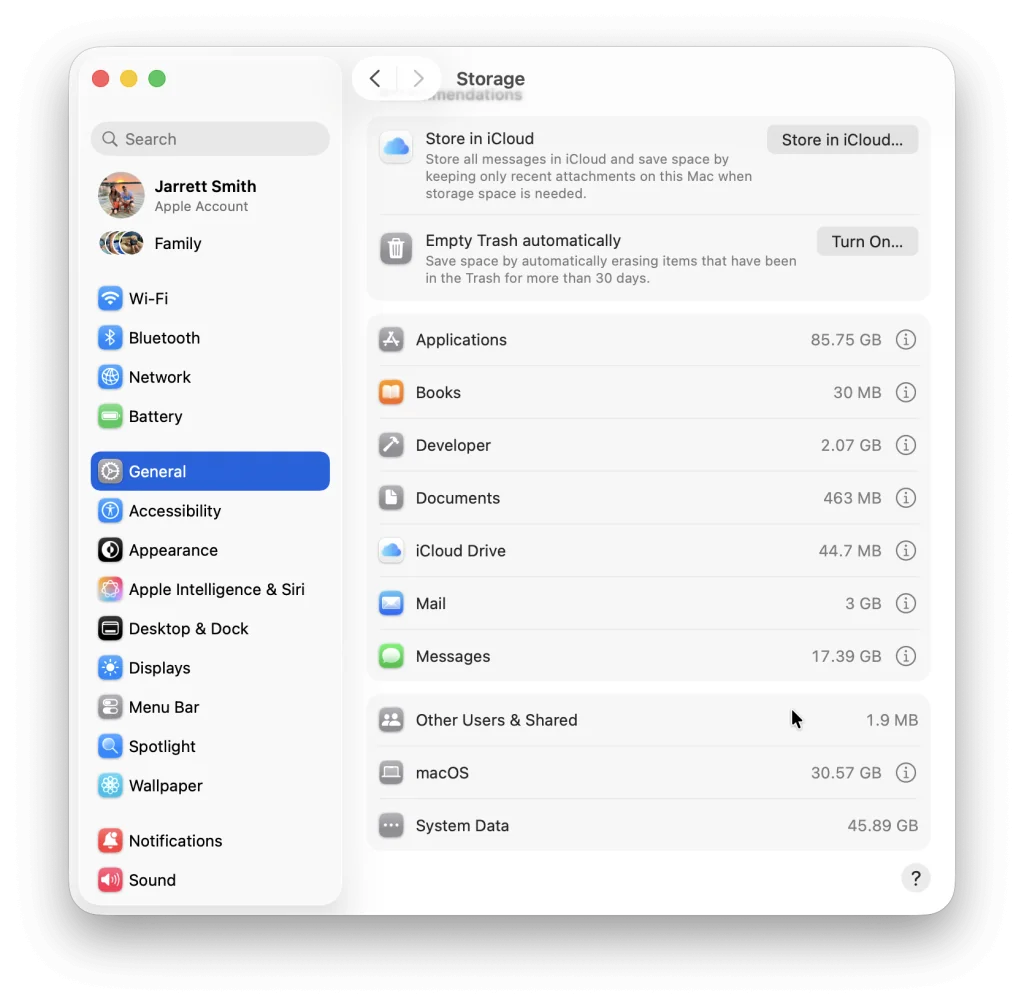
I spent the next few minutes looking through all my apps and uninstalling the ones I didn’t use regularly. There were a few who had been installed because I installed an iPhone version and I had my Mac set to auto-download apps from the Mac App Store.
While it put a dent in my storage space, it wasn’t enough to even install the update. I had gained back 5 GB or so, but the drive was still straining. With little storage space and little ram, this laptop was crawling.
I looked through the other categories that took up all my drive space. My messages took up a lot of space, so I tried to go through them and get rid of anything I no longer needed. I had to cull through messages that were years old and delete photos and videos that had been sent.
Despite having my Photo library set to save space, my library was still taking up more than 30GBs, but I had no way to manage what it took up. Apple needs to add something in to allow you to remove more data from photos, especially if they are all stored in the cloud.
Likewise, macOS and System Data were taking up half of my drive, with no way to deal with it. I did immediately turn off Apple Intelligence, which takes up over 10 GB. While that felt simple, since I hardly ever use it, I would use it to help me craft Alt text for pictures. Removing Apple Intelligence broke that part of my workflow on my MacBook.
All of that worked to help me get the update installed, but it left me feeling like I had no control over many parts of my system. Why can’t I do anything to help slim down the photo library on my Mac? How do I reduce the space taken up by System data and macOS that I don’t use?
Apple doesn’t offer any tools to handle those sections of the system. The way it currently acts, feels like an all or nothing system. If Apple touts how smart their system is at saving space for things like photos and deleting when necessary, why didn’t my system jettison some cruft there, like thumbnails, to get the update to install?
I would love for Apple to make some tools that will allow us to manage that a little better.
Instead, I turned to 3rd party apps instead.
3rd Party Apps to Save Storage
It seems counterintuitive to add a new app on to my Mac to save space, but I didn’t know what else I could do at the moment. I had used CleanMyMac years before, but didn’t have a current license for it, nor did I feel like signing up for yet another subscription.
That led me toward open-source software that felt slightly scary to install. If something were to go wrong, I could always reinstall macOS on my MacBook, but I would rather not spend that time if worst came to worst.
I downloaded a few apps and tried their trial software, but nothing really worked without wanting me to pay for it. I probably could have saved myself some time and effort by simply trying out CleanMyMac again and moving on, but I knew that would simply buy me time until it happened once more.
If you feel comfortable with some of these apps, this could solve your problem. I didn’t want to risk my computer, so I had to figure out something else.
Web Apps
With the update installed and some of my files whittled down, I wanted to reclaim more space until I could figure out what to really do.
Since my apps were taking up so much space, I figured I needed to come up with a plan for them.
I couldn’t part with many of the apps I had left. I used Ulysses every day, so I was unable to delete it.
But then I remembered that I had a couple of web apps already on my laptop. I had attempted to use Grammarly in the browser during my writing journey. That got me thinking about replacing some of my Mac apps with web apps, at least until I could figure out a longer-term solution.
I took my Canva app, which I use to make the feature images on my blog posts, and replaced it with the web app. There didn’t seem to be much of a difference between the web app and the Mac app. I could do everything within the web browser and more.
This meant, I could get the same functionality while saving space. I just won’t be able to use the apps without the internet, which I hardly did anyway. There can also be some advanced settings you can use within a web app.
I scanned through and found other apps that I could do the same with. I managed to save a chunk of space, but it still wasn’t enough. Likewise, I needed to get more of my files off the laptop to save space.
However, if you fall into a similar spot, using web apps could help you slim down that app folder taking up so much space.
External Drive
The only thing I could really do to make a dent on the storage of my device would be to get an external drive.
This would have been my first thought, since I already used an external SSD to fix a sluggish iMac, but I’m picky. I would rather not have to drag a drive, dangling by a cable, around with me everywhere. Conversely, I know some people attach the drive to the lid of the MacBook and keep the cable plugged in that way, but I would rather not glue or tape anything to my computer.
Or you might have a giant thumb drive sticking out the side of your computer. I always worry about those breaking off or getting errors because you forget to eject it before you remove it from the computer.
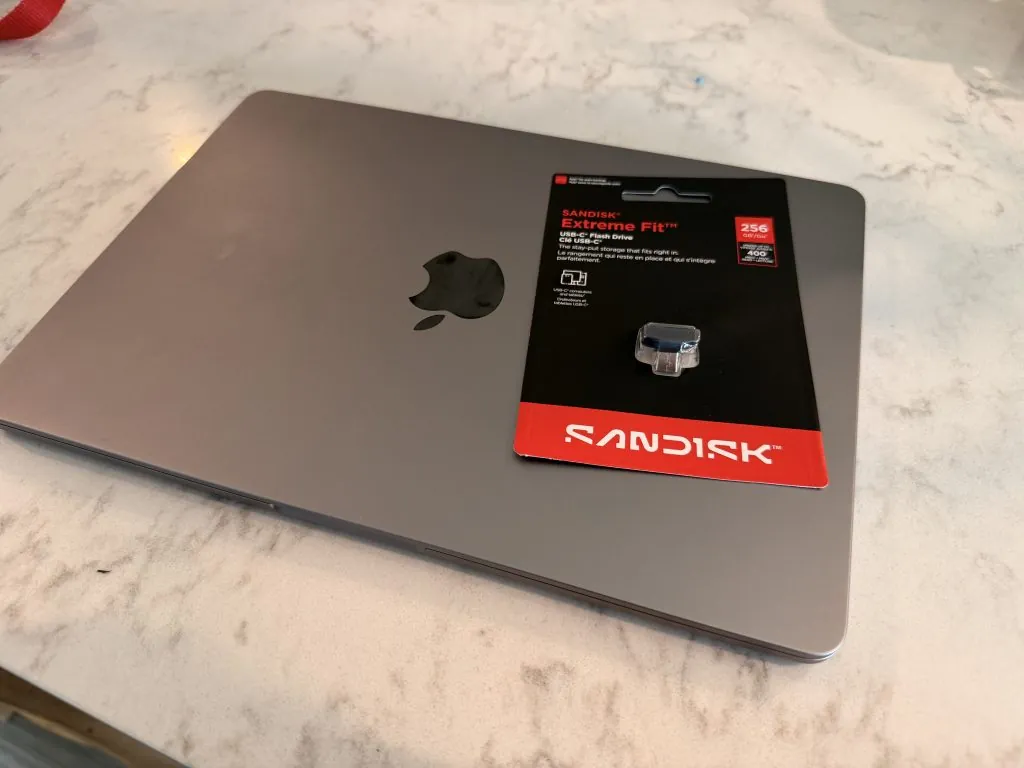
It took some digging, and some help from friends on Threadsto find something that would work for me. I ended up finding and buying a SanDisk Extreme Fit USB-C flash drive. This device doesn’t stick out from the laptop much, so it could get plugged in and left there. I wouldn’t have to worry about a cable, and it fit the laptop pretty well.
The only downside is the speed. It doesn’t read super fast, but I figured it would work well for me. I could store my photo library and other files on the drive, and have my apps and needed data on the internal drive.
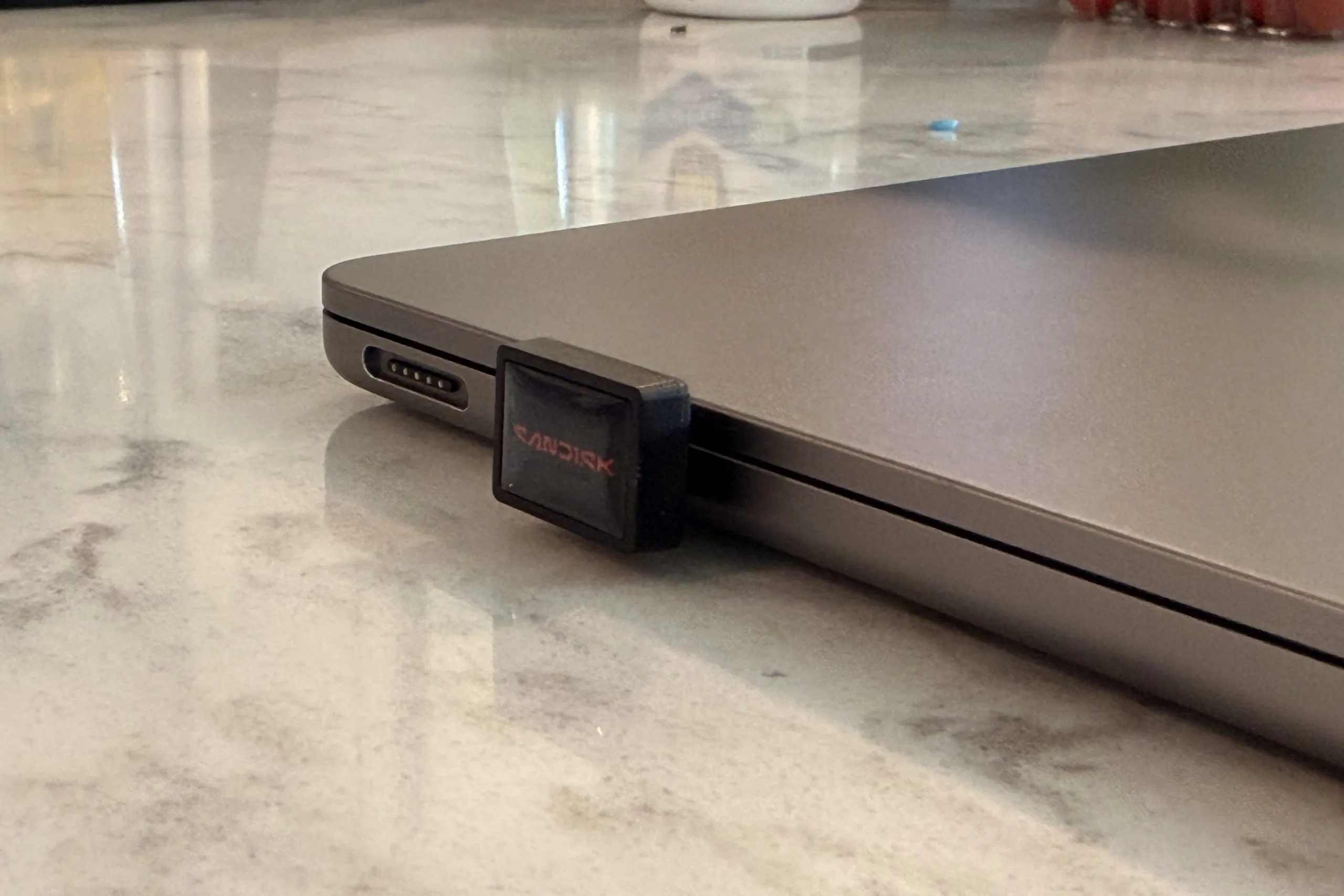
The device fits perfectly on my MacBook Air. It doesn’t block the other drive, and it doesn’t bump or anything when you put your laptop down. Just make sure you have the larger end pointing up, or you might have to eject it and flip it.
Once I got the drive formatted to APFS+, I moved my Photo library off the MacBook and into the external drive. I had some issues getting Photos to move my library over. Every time I tried to set the library on the SanDisk, photos would grind to a halt when I tried to set the new library as the default options. I would have to quit out, and try again.
Eventually, I thought I might just have to delete my photo library and start downloading it from the cloud again. Luckily, I decided to try one more time before I went with the nuclear option, and it finally worked.
I reinstalled the apps I had turned into web apps, and then things got working again.
Carrying around my MacBook with the drive plugged in feels natural. I don’t have to fumble with a drive sticking to the top of the computer, and I haven’t been afraid that it will get knocked off or anything.
I’ve sat in a chair and worked and never had to worry about the thing getting snapped off.
Speed hasn’t been an issue so far. Photos load quickly, and I’ve even moved some of my larger apps there as well. I’m super happy with how it turned out, and I’m thankful that the SanDisk Extreme fit has multiple different size drives. If I fill this one up, I can just get another one and move things over.
This external drive saved me a lot of money from having to upgrade my laptop, so I’m pretty thankful I found it.
Some people have reported drive failures on these devices. I haven’t experienced that, and everything I’m moving over to the drive are things I can redownload again or have them backed up elsewhere, like my photo library. If I have a drive failure, I’ll report back.
How I Fixed My MacBook Air Storage For Good
Filling up a laptop’s drive is never a good thing. The more full it becomes, the slower it gets, as well as not letting you update to the latest operating system.
And I’m not looking to update this MacBook for a while, so I’m thankful that I found some ways to save the space. Through web apps and moving my photos onto the external drive, I’ve reclaimed about 70 GB of space.
While Apple has increased the base storage of most MacBooks, it did just release the MacBook Neo with a tiny hard drive. If you didn’t opt for the larger version, installing web apps and getting an external drive like the Extreme Fit could help you take that mighty laptop even further.
Now, I just need to hold out with these 8 GB of ram for a while too.
If you’d like to see more of my Mac takes, tips, and more, make sure you swing by my Mac Hub.
What are your tips for saving space on a small drive? Let me know in the comments.



Leave a Reply