I was playing with my kids the other day when one of my Threads posts picked up steam. I would get a new notification about a comment or like every few seconds. The subtle bump on my wrist from my Apple Watch kept taking me out of play time with my kids and bringing me back to my phone. I would lose myself in doomscrolling until one of my boys would whine that I wasn’t playing with them enough.
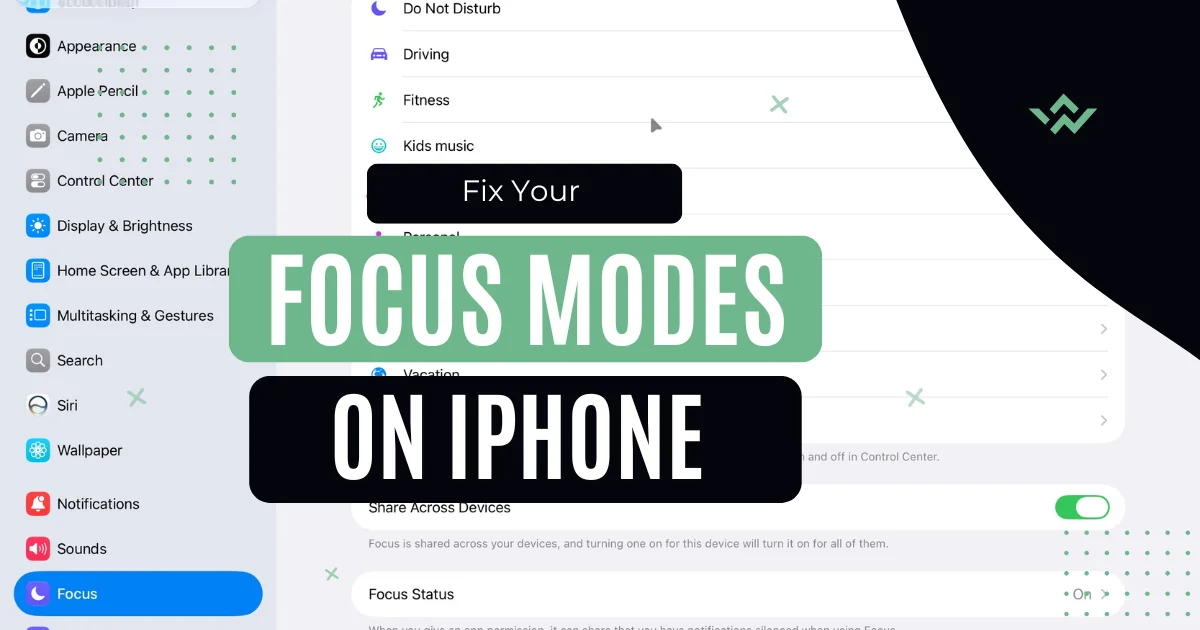
I hated that parent guilt of getting pulled away from the kids. I needed to correct that, lest I show my kids something in myself I don’t want them to do. So, I turned to a built-in Apple feature to help. Focus Mode on iPhone, iPad, and Mac can help reduce distractions and reclaim attention.
Apple’s Focus Modes On iPhone, iPad, and Mac Explained
Apple’s Focus Mode allows me to put my iPhone into a state where only certain notifications come through. So, if I’m working and want to write without getting distracted, I can set up a Writing focus that doesn’t allow any notifications through except from my writing app.
Focus modes allow me to set up my device to different parts of my day. That way, I can get just what I need from my apps when I’m working, parenting, driving, or just being. I don’t need my work email when I’m playing with my kids after all.
As a nice bonus, your modes will sync between all the devices in your Apple ecosystem. If you want to explore more, my Tech hub has guides and opinions on all my favorite Apple devices and apps.
Set Up A Focus Mode on iPhone or Mac
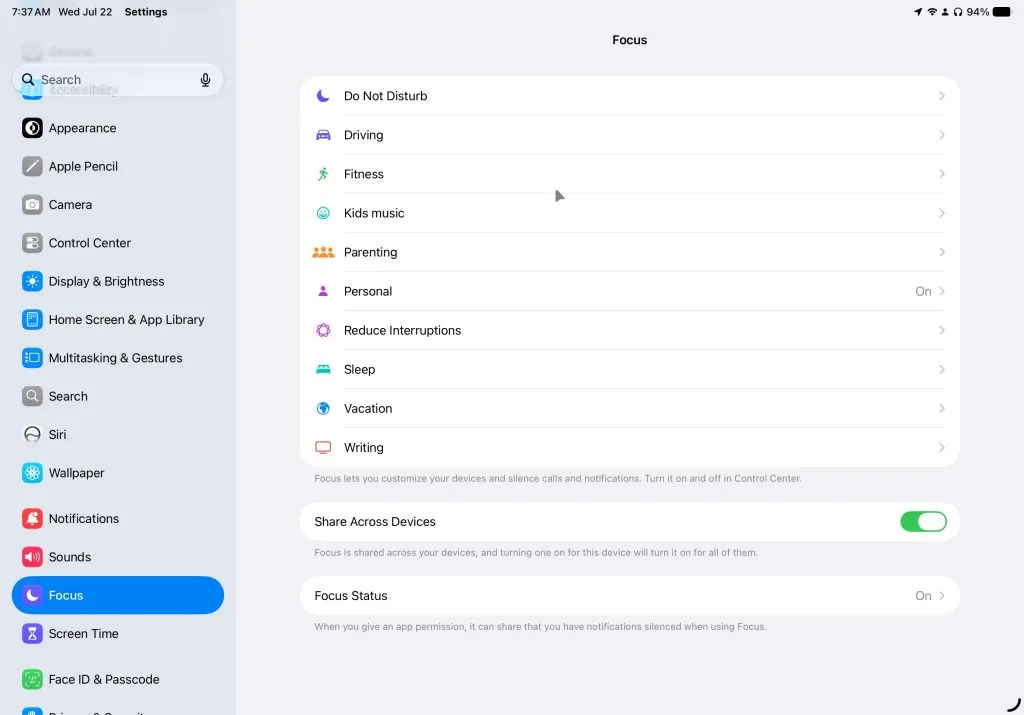
Here’s how to set up a Focus Mode on iPhone, iPad, or Mac. Head to the Settings app. Then scroll down until you find Focus.
Inside this section, you’ll be able to see your current Focus Modes like Do Not Disturb or Driving. You can select those to modify the details or press the Plus button to create a new Focus mode on your iPhone or iPad or Add Focus on your Mac.
From the edit screen, you’ll be able to control what apps and people are allowed to contact you, set up custom screens, and add filters to some of your apps.
Limit Notifications: People and Apps
The meat of the focus mode comes down to which apps and people are allowed to contact you during it. For each app, you can choose Silence Notifications From to limit select apps or Allow Notifications From to disable notifications from all apps or people except those you choose.
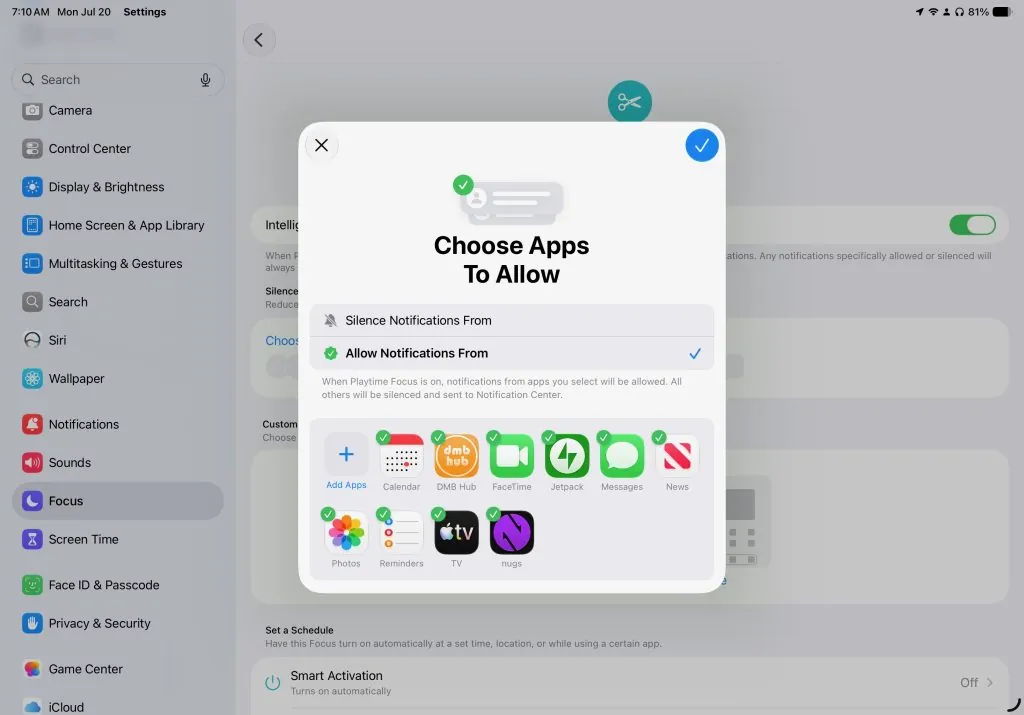
Press the Add apps or add people button to work on the filter. If you have chosen to Silence Notifications From, you are choosing the apps and people you do not want to hear from while it’s active. Conversely, if you select Allow Notifications From only the apps and people you select will send you a message.
If you are worried about missing out on something important, you can turn on the Intelligent Breakthrough & Silencing option and your iPhone or Mac will do its best to allow important notifications through.
Custom Screens
While setting up your Focus, you’ll be able to select which lock and home screens actually appear. If you don’t want your games to tempt you when you work, turn your custom game page off.
When editing a Focus on your iPhone, you’ll get the lock, Home Screen, and option to have your Apple Watch change to a chosen face as well.
Each option shows up in the Customize Screens section. Tapping each section will offer you the options available for that screen. Unfortunately, you’ll have to set up your home screens before you set up the mode, you won’t be able to create a new one inside the option.
Filter Your Focus
Finally, you can set up filters for each Focus. Here, you can set up apps to only show you a particular data set. For example, you can have your personal focus not show you any of your work calendar options inside the app.
You can filter the Calendar, Mail, Messages, Music, Phone, and Safari apps. You can also set up system filters to trigger when you turn on the focus, so if you want your screen to appear in dark mode when you are writing, you can set that up to happen when the focus engages.
How I Set Up My Writing Focus Mode
When I’m writing, I want to filter out most of the world. So, here’s how I have my Writing Focus set up.
Notifications From People I started with allowing only text from my wife, mom, and my boys’ schools. No one else can break through. I don’t need to talk to anyone else during this time, so I have it very limited.
App Notifications I only have notifications from Home (in case someone is at the door), Music, and Now Playing. Sometimes, I’ll set a timer or alarm, but those alarms don’t get stopped by the Focus. If I leave on any other apps, I’ll find that my digital focus wanders. A new email notification can send me down a spiral if I let it, so it’s best to turn everything off.
Schedule For a while, I had this filter set up to launch when I opened Ulysses, but I ended up taking that off, because Ulysses is almost always opened on my Mac. The apps I used for work expanded to include a Notion database and a few other apps.
I just have to remember to turn on my writing focus when I get into it. Usually, I have to get one notification and chase it for a few minutes before I turn my focus on.
Filters I don’t have any filters currently set up. I have thought about setting up some strictly work calendars and using the focus filter to show only those calendars. However, I’ve been using a calendar database in Notion to help me with most of what I would do.
How I Set Up My Parenting Focus Mode
I also have a Focus for parenting. It has many of the same qualities, but the idea is to turn off the digital world a bit so that I’m more present with my children.
People Notifications I don’t have anything turned off here. If someone needs to get in contact with me during this time, I can determine if the conversation is worth having in the moment. I don’t need to be cut off from the world completely while I’m playing with my kids, I just need to be more present when I can.
App Notifications I still have most of my notifications, but I’ve tamed the ones that get me lost after a single notification comes through. So, I’ve allowed notifications from all apps except social media. I also have turned off a few things like photos, news, and Disney. I don’t get many notifications from those apps, but I just don’t want to risk it when I’m playing with my kids. I also reserve the right to add to that list as time goes on and I discover more time sinks.
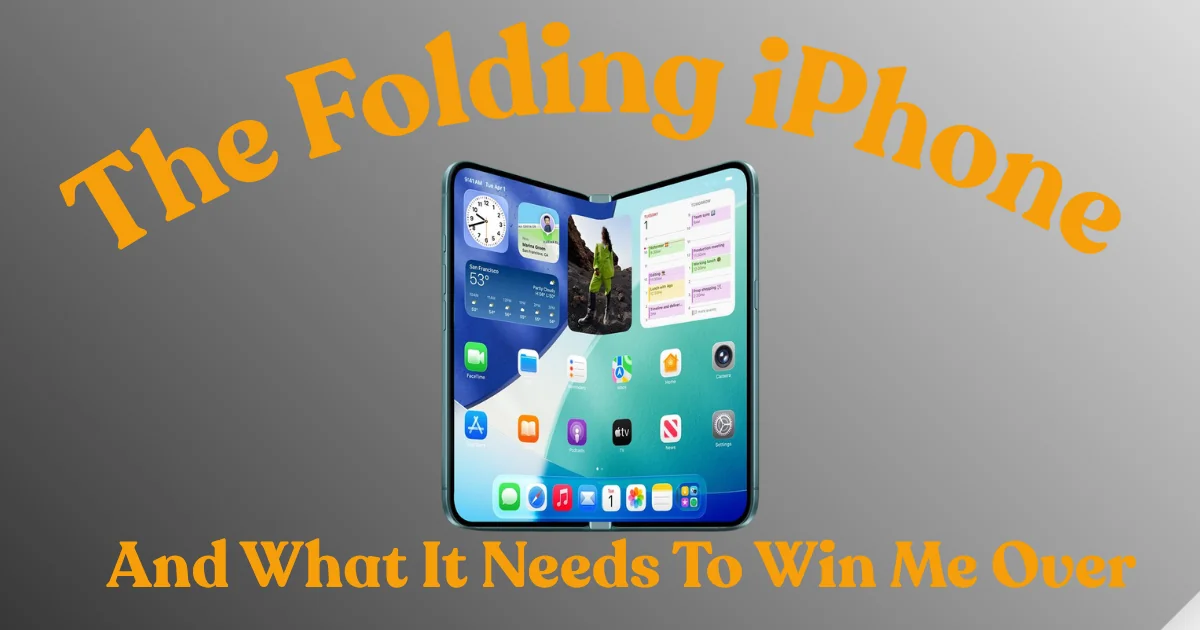
Schedule and Screens I don’t have any custom screens or schedules here. Since I might need this focus at any moment of the day, I’ve set the action button on my iPhone 17 Pro to trigger it. I imagine with the new folding iPhone coming, they might even have ways to automate your focus mode based on your screen settings.
That way, if I get pulled into a play session or something where I need to focus on my kids, I can simply press the button on my iPhone and block out most of my digital distractions.
Filters I have a filter for Apple Music for this focus. While we don’t usually listen to music when we’re playing, we do sometimes. I don’t want the outrageous songs the kids ask for ruining my musical algorithm more than they already have, so I have it set to NOT use my listening history here.
Master Focus Modes On Your iPhone To Reclaim Your Focus
Now, when I play with my kids or get into a writing session, I can use Focus modes to block out most of the digital distractions that drag me to my devices. I have found that I’m a more aware parent, and can spend the moment with my kids. I can also focus on my writing and not get distracted mid-sentence.
After setting up my Focus modes, I had a blast with my kids as we played. Instead of getting pulled into my Threads feed, I watched in amazement as my youngest built a huge building out of magnetic tiles—something I didn’t know he had the dexterity for yet. I not only felt proud, but so grateful that I had watched him do something I hadn’t seen before.
If you found something of value here, make sure to stop by my iPhone, iPad, or Mac hub to see all my tips, guides, and opinions on my favorite Apple devices.
Let me know how you’ve set up your Focus Modes in the comments.
Leave a Reply