With a new round of Apple OS updates, my favorite writing software, Ulysses got updated right along with them.
Ulysses 41 comes with a plethora of enhancements and updates like updated visuals, customizable toolbars (on macOS 27), templates, fixes, and improvements across the board. The headline feature is Ulysses’s new integration with Siri AI—but only if you want it to.
While testing out the beta of macOS 27, iPadOS 27, and iOS 27 this summer, I have also been testing Ulysses 41. It has been a rock-solid beta with some remarkable quality-of-life upgrades. I’ve especially loved testing out using Ulysses with Siri AI.
Ulysses Is Ready For macOS 27, iOS 27, and iPadOS 27
With Apple updating Liquid Glass in the newest editions of its operating systems, the developer of Ulysses followed suit and updated Ulysses’s interface.
Although the app was updated when Liquid Glass first came out, they have tweaked the icons and menu bars to match with Apple’s updated style. These design refinements make text easier to read and elements you need stand out.
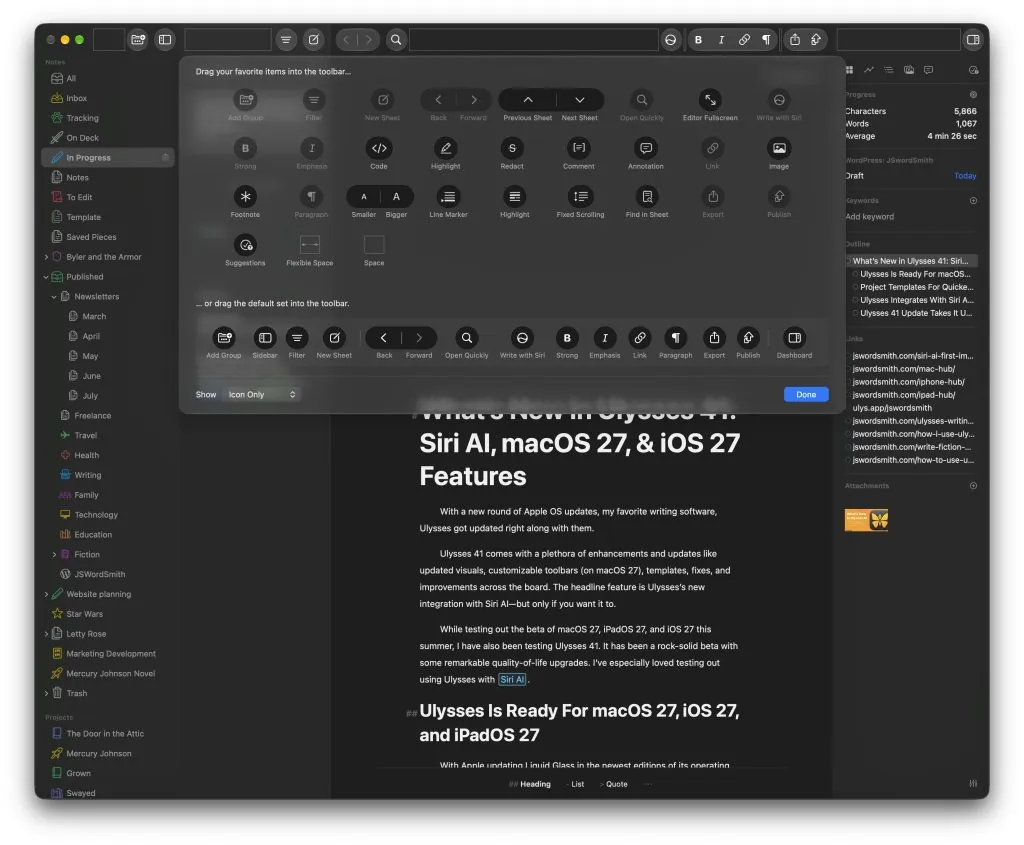
On the Mac version of Ulysses 41, they have added the ability to customize the toolbar. Simply Command-click in the toolbar area and you can see all your options in the standard drag-and-drop system to make the toolbar work how you want it to. I added in a button for strikethrough and the full-screen editor.
Project Templates For Quicker Project Start Up
Projects received a massive update in Ulysses 41 with project templates. Now, if you are creating a project, there is a new dropdown menu with project templates for things like Novel, Non-Fiction, or Thesis.
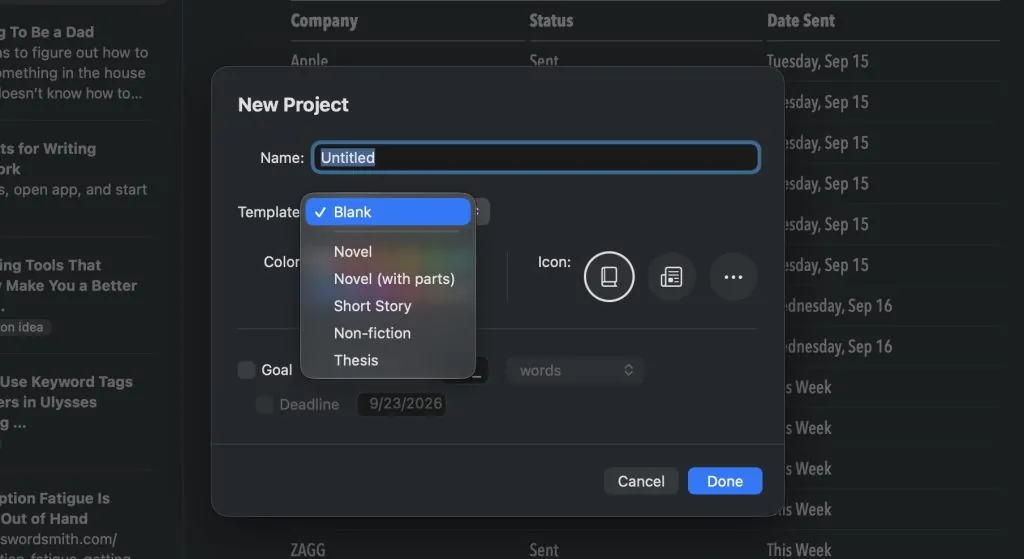
If you choose one of these, your project will be populated with sheets and groups that can help you write. The novel template contains sheets like Dedication pages, Drafts, chapters, author bio and more.
These templates are designed to help you get your larger projects up and running faster. In use, this is a great help because in the past, I’ve gotten distracted making some of these pages and not spending the time on the writing. Now, authors can select the template and get right into the writing that matters most.
Ulysses Integrates With Siri AI—Only If You Want
The most significant change has to be the inclusion of Siri AI for Ulysses users who want it.
If enabled, in Ulysses 41, Siri can:
- Create new sheets
- Move sheets
- Mark sheets as favorite
- Read sheets and get an overview of existing groups
- Open a sheet
- Export a sheet
- Export groups
- Start a search within Ulysses
- Interact with the text inside the editor (proofreading, fact-checking, summarizing, etc.)
If you have it turned on, you’ll notice some words and phrases might get underlined with blue, which means that your device’s grammar check has detected something. So far, the grammar checker is the only passive use of Siri AI. Everything else will require the user actually asking Siri for something.
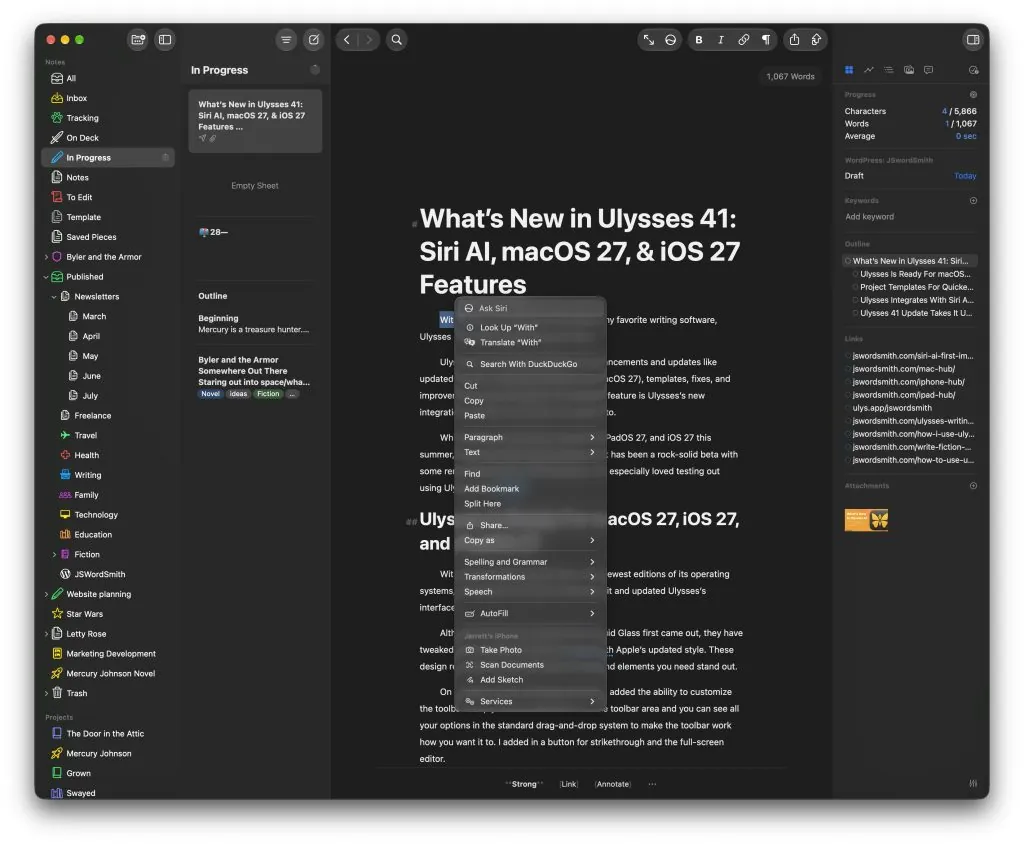
But Siri can do so much with your sheets and groups now. I’ve had Siri look for a document where I couldn’t remember the title and just described the contents. Of course, you can always highlight words and Command-click to get the Ask Siri option in the context menu to do mostly anything, like check usage or fact-check something.
In testing things out, I’ve been asking Siri to proofread my work for me to help me catch things that I didn’t see. Unfortunately, because of the nature of the system, I have to ask Siri to proofread in a specific way to get her to do it like I want. Otherwise, she just jumps to sections and offers up a change. I want her to identify an issue and tell me the problem.
Please help me line edit this draft. Go section by section, and provide bulleted suggestions for typos, grammar, sentence flow, and stylistic improvements. Do not revise the text directly; just give me the feedback so I can make the changes.
My Siri Prompt
With my prompt, I got through each section to check for typos, grammar, flow, and stylistic choices. Siri will tell me what the issue is, like an overused word or a phrase not being professional enough.
Siri has made notes for me. I was recently doing some media relations work and needed to keep track of all my emails. I asked Siri to help me keep up with it all. In response, Siri made me a new sheet in Ulysses and created a chart with dates and email contacts.
Things aren’t perfect, though. There are times when Siri can only see what’s on the screen in Ulysses instead of reading the full sheet. I think it’s an issue with Siri more than Ulysses and that the kinks will be worked out as it continues to evolve. That said, to find a workaround for that, I would just ask Siri to search for my sheet and then to examine whichever section I was working on.
For the writers who don’t want to use AI, you can turn off Siri AI’s access to Ulysses in the Settings app.
Ulysses 41 Update Takes It Up A Level
Ulysses is putting in the work to keep the app up-to-date for an ever-changing climate. They were there on launch day with a newly updated app for macOS 27, iOS 27, and iPadOS 27.
These new features are super helpful when I need them, and stay out of the way when I don’t want anyone looking in on me. The way I write continues to change, and thankfully Ulysses evolves right along with me, allowing my words to flow freely.
While I hate subscriptions, I love that the low price of Ulysses’s yearly plan gets put to use for continued development. If you’d like to try Ulysses or subscribe, make sure to use my referral link to save 25% off your first year.
If you’d like to find more tips or guides on Ulysses, make sure you check out my Complete Ulysses Guide. There you can find how I set up my Ulysses for blog posting or fiction. If you’re getting started, you should head to my getting started guide.
What is your favorite new feature for Ulysses? Let me know in the comments.


Leave a Reply