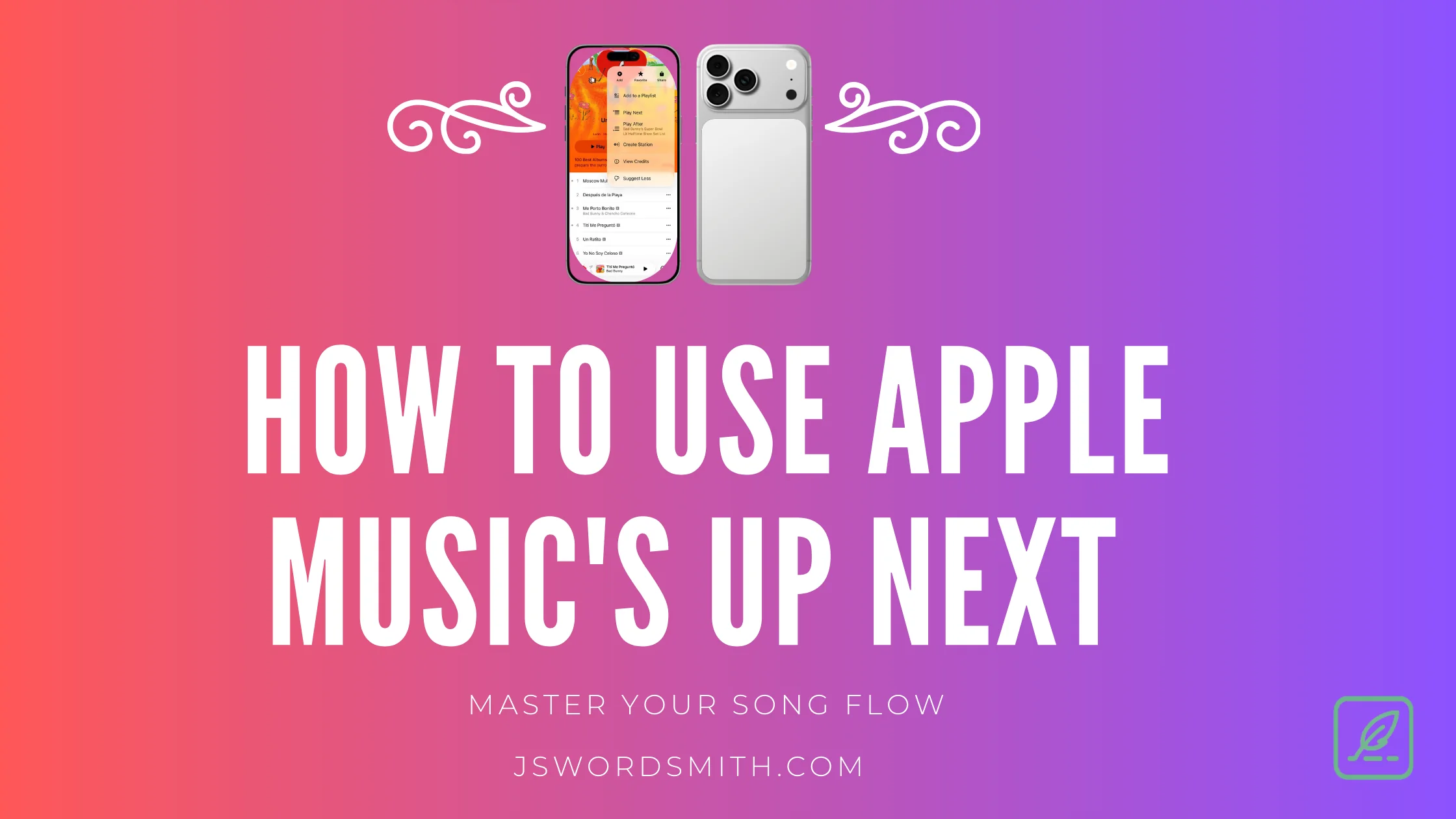
The Apple Music Up Next feature allows you to control the music you want to listen to without the need to build a playlist. If you’ve ever been listening to music and wanted a specific song to play next, Apple Music makes it easy to do exactly that.
All it takes is getting familiar with Up Next and Apple Music’s Queue feature. Here’s a simple guide to using Up Next and taking full control of your listening experience.
What Is The Apple Music Up Next Feature?
Apple Music’s Up Next feature lets you select the music you’d like to listen to, whether it’s just one track or an entire temporary playlist. You have full control of the playback order and what songs are coming up next.
How To Add a Song to Up Next
To add a song to play next in Apple Music on iOS, iPadOS, and macOS, find the song you’d like to listen to next and select the three dot menu to the right of the song title.

Inside the menu that pops up, you’ll see these two options:
Play Next: The song will play at the end of the currently playing song.
Play After: The song will play at the end of your current Queue, album, or playlist.
On iOS and iPadOS, you can also swipe a song title from left to right to play next. A slower swipe will bring up two icons: the orange button for Play After, and the purple button for Play Next.
How to Build and Edit Your Queue
Once you’ve added a song or two, you can edit your Queue.
To access it, tap the Now Playing bar at the bottom of the Apple Music app — the bar that shows what’s currently playing. On the Now Playing screen, you’ll see album art and playback controls. Look for the icon with three dots and three lines, and tap it to open your Queue.
Each song in the Queue has a grab handle (three lines) that you can use to drag it into a different order. Your music will play in order from top to bottom.

From this screen, swiping down reveals your recently played songs. On iOS, press and hold a song to get the option to add it back to your Queue. On Mac, click the three-dot menu or Option-click to access the same options.
If Repeat is enabled, your Queue will loop until you play something new. You can continue adding songs to your Queue even while it’s repeating.
How to Add Songs to Up Next Using Siri
Of course, you can also use Siri to add a song to your queue — which is super helpful while driving. Just invoke Siri and add “play next” or “add to my queue” to your request.
For example, “Hey Siri, play Blackbird by the Beatles, next,” or “Hey Siri, add Blackbird by the Beatles to my Queue.”
Siri will add the songs to your queue, but doesn’t currently have the power to modify your list.
Use Up Next in Apple Music to Take Control of Your Music
Apple Music’s Up Next and Queue features give you a flexible, on-the-fly way to curate what you’re listening to without committing to a saved playlist. Whether you’re road-tripping, working out, or navigating a household with competing music tastes, Up Next makes it easy to keep everyone happy.
Don’t forget to check out my most wanted new features in Apple Music.
If you found this guide helpful, consider subscribing below for more Apple tips.

Leave a Reply