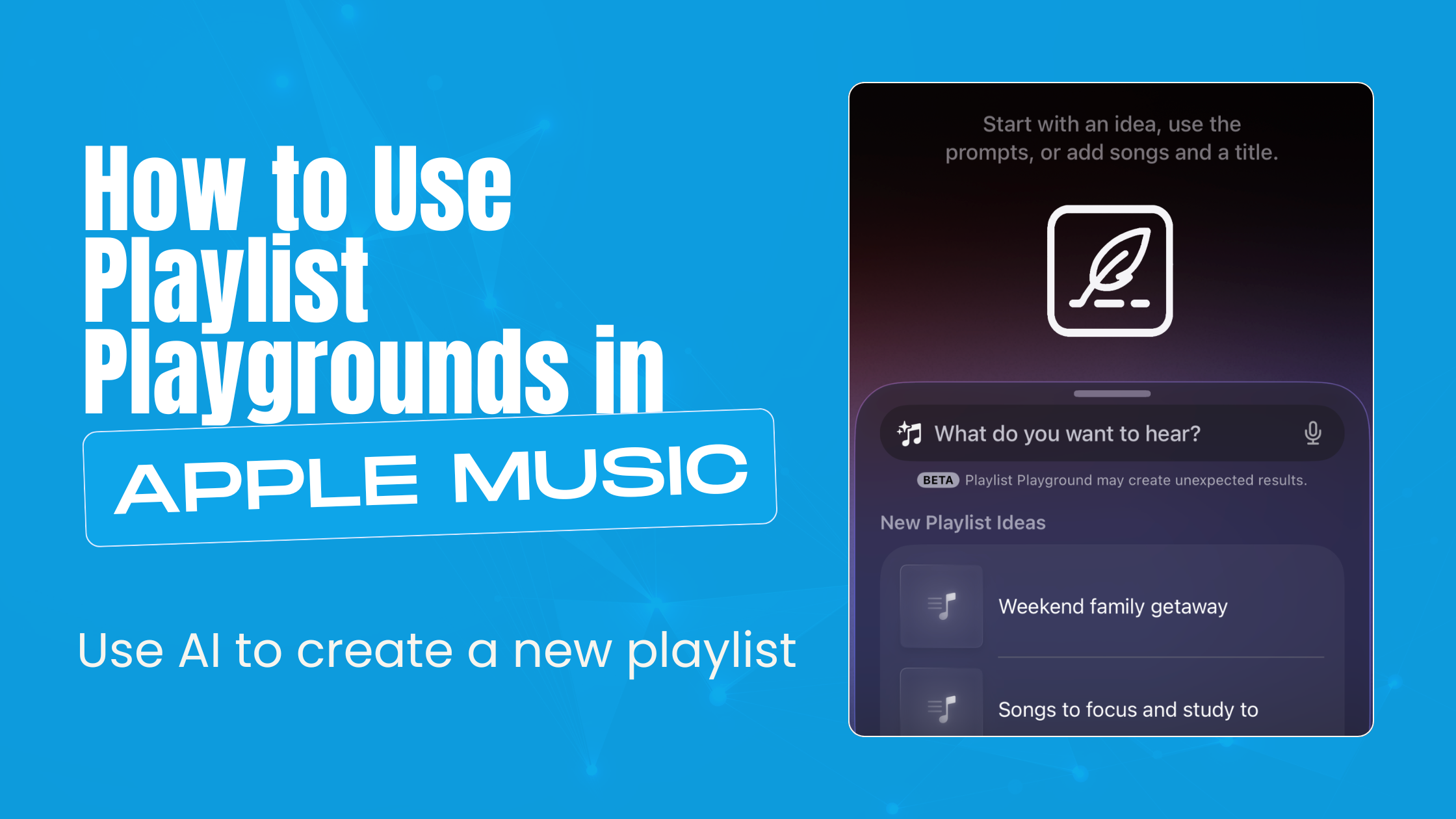
Playlist Playground allows users to create playlists with text prompts using Apple Intelligence.
I wanted Apple to allow users to create playlists using AI to describe the type of music they wanted, and now it’s here with iOS 26.4 and iPadOS 26.4.
Here’s how you can make a playlist with Apple’s AI.
Requirements

To use Playlist Playground, you need three things:
- A connection to the Internet on your iPhone, iPad, or Android device
- A valid Apple Music account
- Sync Library turned on
Playlist Playground seems to be the first AI feature on an iPhone or iPad that doesn’t require Apple Intelligence. I assume this means that this feature is most likely using Apple’s Private Cloud Compute servers.
How to Create a Playlist Using Playlist Playground


Creating a playlist with AI in Playlist Playground is simple.
- Open Apple Music
- In your library, head to the playlist category
- Select the + button
- Select Create New Playlist
At the bottom of the new playlist screen, you should see a spot where you can type in text. It is here that you can start using AI to build your next playlist.
You can tell the AI anything you want, from general mood types of music to more specific requests.
Example prompts you can give it: Create a playlist for a focused writing session, or play the top 5 songs in each genre currently popular in LA. I asked it to make a playlist of the popular music from Peru, and it filled it with songs I heard on my trip there.
Apple Music will then pull from its catalog of songs to build your playlist with your parameters in mind. Usually, this list will be about twenty-five songs, but it can often go much longer.
Edit Playlist By Adding Songs You Want
The playlist that Playlist Playground create can be the start of a great playlist, but you can also do more with it.
If the base list isn’t hitting you in the feels, you can refresh the playlist. Select the text box at the bottom of the list and the card will expand.
From here you can:
- Add more parameters to your playlist or tell the AI to add more songs. The list can add or remove songs you choose.
- Add More Songs will make the playlist longer by adding more songs that fit the prompts you’ve given it.
- Refresh Playlist will regenerate the playlist with the same parameters but find a different song.
The card also suggests some songs it thinks you might like to add to the current playlist.
You can add particular songs that you’d like by selecting on the three dot button at the top to search for the songs you’d like.
Customize Your Playlist
Once you’re satisfied with your playlist, select the check inside the circle in the top right of the iPhone screen. This will move your created playlist to your library.
From here, you can edit the playlist like you normally would, but you can’t return to the AI prompt. You can always add songs to the list and change the album art as you normally would. I like to change the names of my playlist to something a little less robotic.
What’s Missing in Playlist Playground
This feature feels pretty slick and is something that I asked for a few weeks ago. However, I’m slightly underwhelmed.
The feature does everything I wanted, and it has handled everything I’ve thrown at it in the prompt and spit out some great playlists. Occasionally, it feels a bit sterile to me, even though the graphics are top-notch when working on a playlist.
I also don’t feel like the AI knows me that well. I asked it to make a playlist of my least played songs from my favorite artist, and the first four felt like songs I’ve listened to more than any others. Part of that might be I have a large collection of live shows that have spread the listening around, but it still feels like it might be something the system should take account of.
To that end, I also asked it to make a playlist full of the top kids songs I had listened to, so I could make a playlist for my kids. The playlist it shot back at me had no semblance to what we’ve listened to in the past. While Danny Go did make an appearance on the list, they weren’t the songs we had listened to much.
After using the feature, I also think I wanted something more akin to Pandora from years back. I wish I could write in a prompt the type of music I’d like to hear and have it create a radio station versus a playlist. I would also like to say, add this type of music in after it starts.
This feature hasn’t been brought to the Mac yet, and I find that an odd omission.
To get around this limitation, simply create the playlist on your iPad or iPhone. Once you’re done crafting, it will sync to your Mac.
While there are some pain points right now, I feel that this is a good start. I hope they will finish them out and not just let this feature languish. I would imagine when they update Siri, this feature will also get updated.
Playlist Playground— Worth Playing Around With
Playlist Playground is a fun new addition to Apple Music. Creating a playlist tailored to what you like is as easy as describing it. I have created numerous playlists that fit my music taste, and I’m having fun seeing what I could create.
I also love that Apple has kept in the ability to add songs that you want on these AI-generated playlists. There are some pain points, such as the library not knowing you all that well and the lack of a Mac app, the good outweighs the bad. Plus, this is a feature that you never have to use if you don’t want to.
If you got something out of this article, make sure you swing by the iPhone or Tech Hub to find out even more to do with your devices.
Of course, you can also subscribe to my weekly newsletter to get more behind the scenes looks what’s going on at the site and how I test features like this.
Leave a Reply