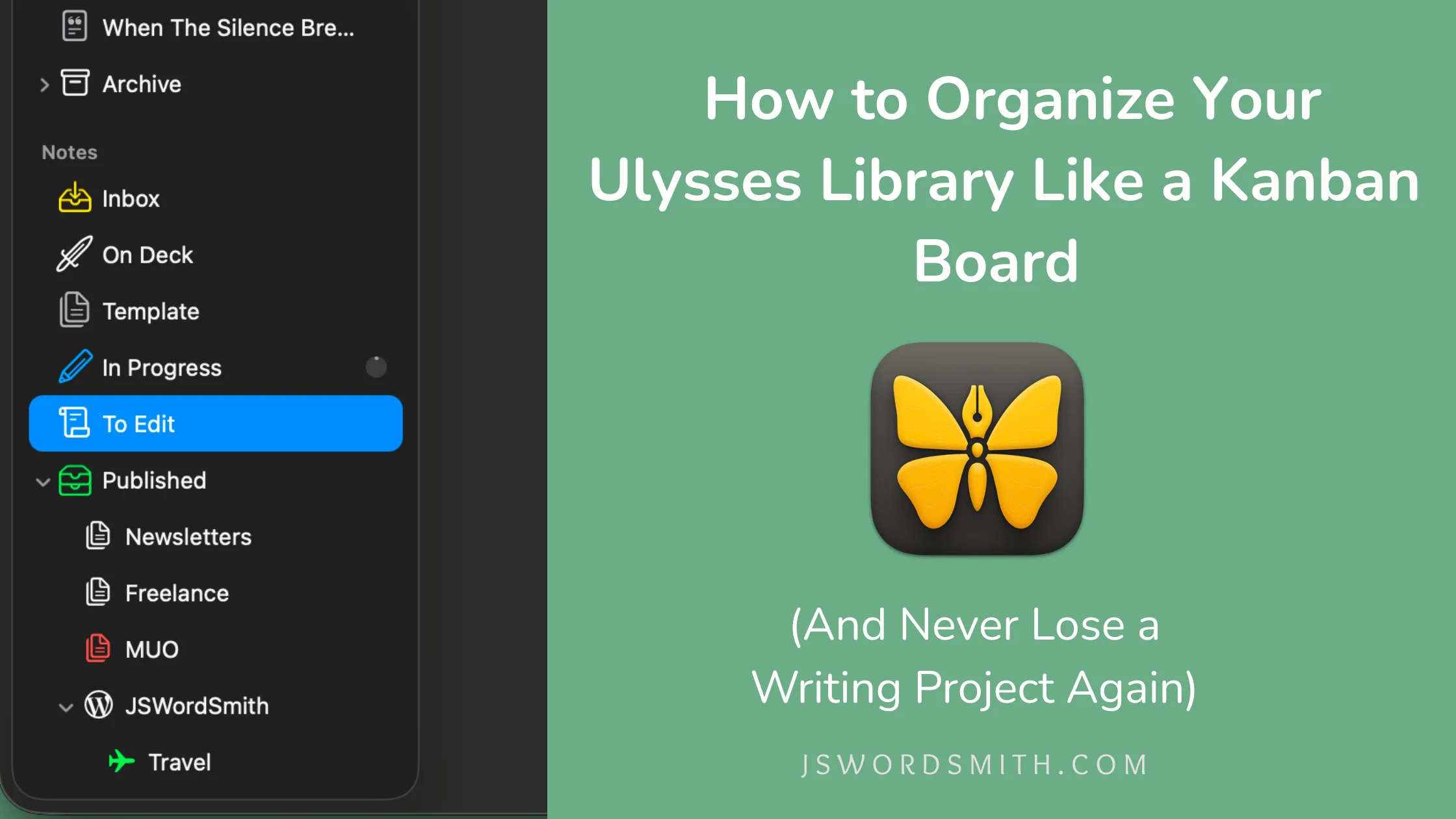
I used to lose my ideas and documents all the time. I’d save files in places I thought I would come back to. When I wanted to get back to an idea, I couldn’t find it.
Or, I’d jot down a note somewhere for the future and never find it again.
I tried to keep things organized using Reminders, but that had me jumping around between apps.
Then I discovered a way I could organize the Ulysses library on my Mac to stay focused. Suddenly, I had a system that let me keep track of every stage of my creative process. I knew where all my ideas and works in progress were, plus I could go back to published work when I needed.
Here’s how I organize my Ulysses library like a Kanban board and boost my productivity.
How the Ulysses Writing App Got My Writing Organized
My trainer at MakeUseOf recommended I write in a markdown editor for ease of export to the web. I tried Ulysses and loved it. It offered markdown support and iCloud sync, features my previous writing app had struggled with.
At first, the library felt confusing to me. I would make groups for larger projects and just start sheets in whatever group I was in. I had to mentally remember where things were and what state they were in.
Eventually, I found a post about how someone had turned their Ulysses library into a makeshift kanban board. I realized that I could use Ulysses to help me organize and stay productive. While I mostly copied it, I have made some tweaks from the original post that might fit some people’s writing workflows.
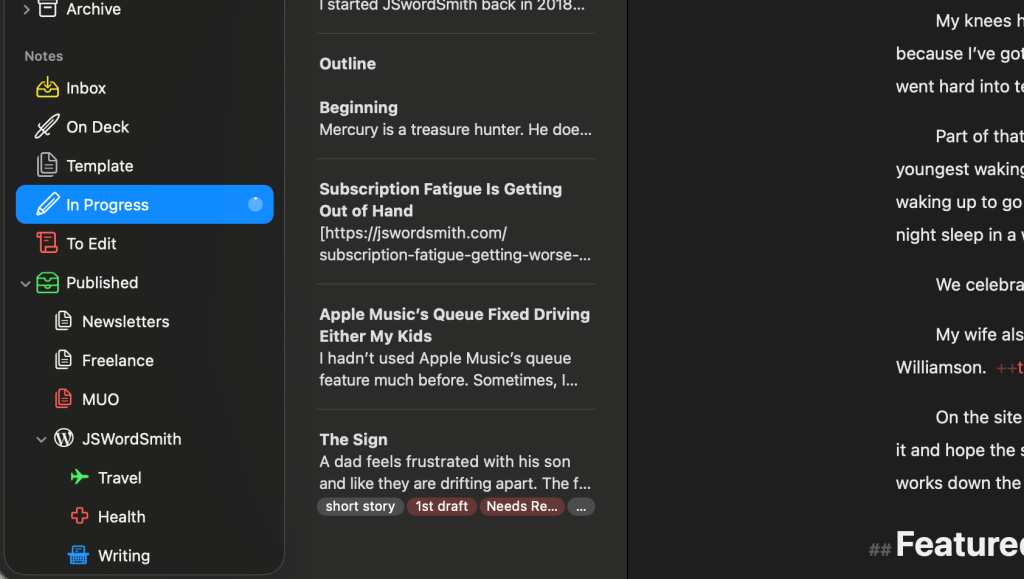
📥Inbox
When I get an idea for a story, blog, or novel, it all starts in the inbox group. This is a repository for a fragment of an idea that hasn’t been fleshed out yet.
I make a new sheet, title it, and write an outline or summary. When I need an idea to write about for the week, I’ll scan here. It also houses those sparks of ideas that will eventually turn into a larger piece.
Sometimes, we get too many ideas as creative writers and its great to be able to store all these ideas in a place where we can go back to see them.
Some sheets will move on, but for others, this group could turn into a graveyard.
🚢 On Deck
The On Deck group in my Ulysses library houses the sheets that are slightly more than ideas, or pieces that I know I need to work on soon.
These are files from the inbox that have burrowed deep in my head and I know I need to put some time in them or older pieces that I know have to be looked at again for revisions.
👯 Template
The Template group holds documents I use multiple times.
Currently, the only thing in this section is my weekly newsletter template. When it’s time to work on it, I make a duplicate of the template and move it to my In Progress folder.
This would make a great place to put a character building sheet or any kind of document that gets used multiple times. Simply duplicate the form and then move it to my In Progress section so that I don’t write over my template.
✏️ In Progress
My In Progress folder has everything I’m currently writing. It could be the week’s blog post, a novel in progress, the weekly newsletter, whatever.
It also helps me focus where in Ulysses my writing happens. I’ve set a daily word goal of 500 words, and this helps me keep all my projects in one place. Now, all my writing goes toward one writing goal, no matter the project.
Check out my guide for setting goals in Ulysses.
It can be difficult to write when the kids are around. To combat that, and reach my word goal, I developed some strategies to write betwen the margins of life.
Once goals have been achieved and drafts are done, these sheets move on to the next stage of writing, where they will get sliced and diced and shuffled around.
📝 To Edit
Finished drafts head to the To Edit folder. I will use Keywords here to indicate its current draft as well, so that I know which version I’m on.
These sheets need to get cleaned up and looked over before they can move on to published pieces. I’ll turn on Ulysses’s revision mode and clean up its suggested edits, while also looking over the flow of the piece. If I need someone to look over my words, I’ll export it to a Word document and upload it to Google Docs or Apple’s Pages.
When I get to this point, I sometimes move the sheet back to the In Progress folder, depending on how substantial the edits are.
But once I’m done, I get to celebrate by moving the sheet on to the next phase, being a published piece of writing, that goes out into the world for others to read.
🗃️ Published
Pieces I’ve finished editing move on to the Published Group. There I have groups for my different types of writing, blog posts, short stories, some part of a novel.
I have a group for my website that has nested groups for each of my main website hubs: Tech, Fiction, Family, and Travel. After the piece shows up on my blog, I move its sheet to the right publication folder. If I ever need to update the piece, I can always find it in the library.
If the sheet is part of a novel, I’ll move that sheet up to its project group for said novel. I like keeping my novels there since it helps me focus all the ideas for the novel there.
I can refer to any sheet without having to leave the app.
As I move the sheet to the folder, I feel a sense of joy and fullness. It’s another writing piece completed.
My Ulysses Library Organized for a Better Flow
I’ve written more than ever thanks to my organized Ulysses library. Now, I know where each piece is in the process, and it helps me stay focused with creating for my blog and my fictional pieces. The way I organized my library unlocked something in my brain that keeps me focused and allows the work to flow.
And the best part, I can do all of this from my Mac, iPhone, or iPad because it syncs across all those devices with ease.
Make sure you check out my Ulysses guide to help you get the most out of one of the best writing apps. You’ll also find a link to save money on your first year of a Ulysses subscription.
Make sure to check out all my writing tips, software guides, and more to help you unlock your author potential over at my Writing & Creativity Hub.
And make sure you subscribe to my weekly newsletter to get more tips, posts, and stories sent straight to your inbox. to sign up, just enter your email in the form below.
Let me know how you structure your Ulysses libraries in the comments. I’m always on the lookout for things to incorporate into my workflow.



Leave a Reply