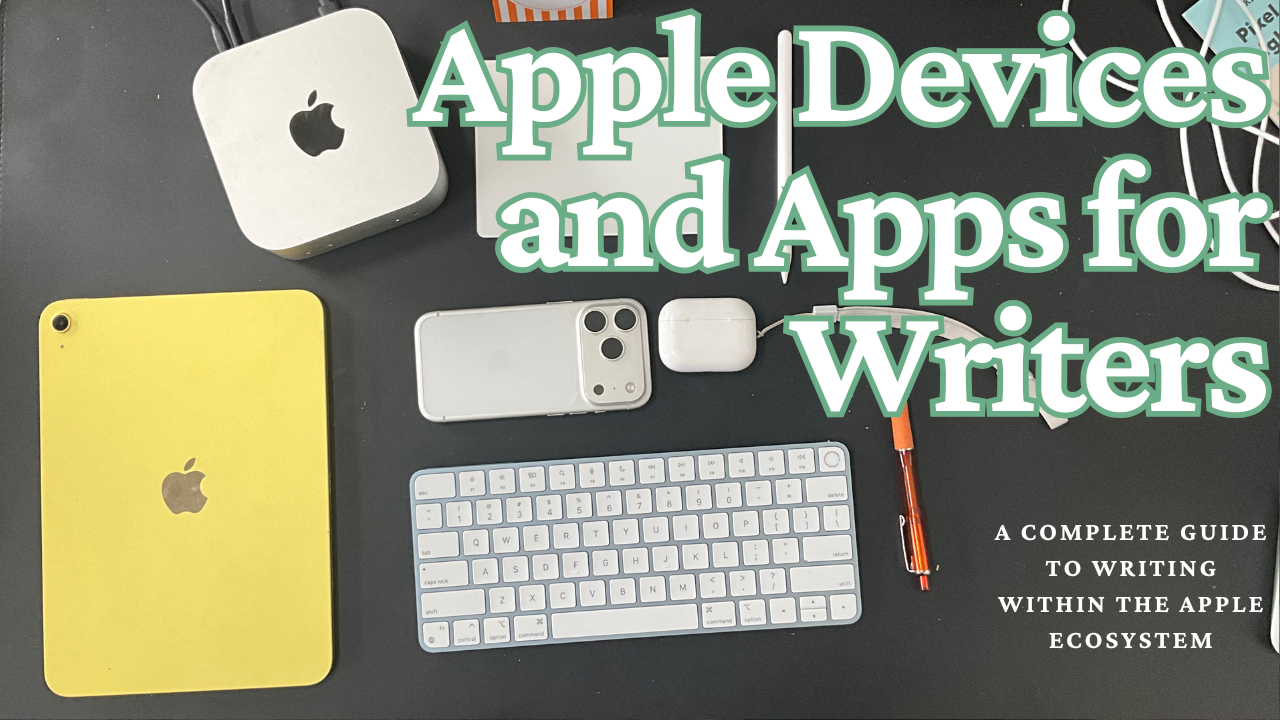
I’ve been writing on an Apple device since college, and I’ve found that they offer great synergy between apps and devices to help you get words on the page and pages out the door.
Apple devices offer so many features that authors can take advantage of, and thanks to the success of the App Store, there are so many Apple writing tools for wordsmiths use throughout their entire writing process.
Introduction: Why Apple Works for Writers
Since Apple owns the entire stack, all of my devices work together to help me get my thoughts down and stories written.
There is a wealth of Apple apps for writers that offer versions for iPhone, iPad, and Mac. Therefore, I can start with an idea on my iPhone—while pushing my boys on the swings or going to karate class, then move them over to my Mac for heavier editing. I’ve even taken just my iPad on vacation with me to get blog posts edited, while working on backend things on WordPress.
Not only that, but the wealth of apps that are out there to explore and use certainly helps.
Stage 1: Capturing Ideas on my Apple Devices

Most great stories start with a simple idea. The hard part is capturing those ideas down so you don’t forget them. How many times have you come up with a great idea right before bed or jumping in the shower only to forget it when you sit down to work on it.
That’s why having an Apple Watch or iPhone with you can help out. While there are tons of apps you can use to collect your ideas, your Apple devices come preloaded with Apple Notes.
Apple Notes allows you to gather and organize your ideas. You can use folders or tags to group them. And if you have some intricate ideas that spans multiple notes, you can use links to move between them.
I can make a note from any of my devices, and they sync quickly across all your computers so that you never lose that idea for the next great novel or blog post.
Furthermore, when you get an idea but can’t sit down to type, you could use Siri to capture your idea down with simply your voice. If an idea comes to me while I’m in the shower, I’ve been known to ask Siri on my iPhone 17 Pro to make a note with the idea inside.
Now, when I get to my desk to write, all my ideas are in one place. I can sift through them to find the one I want to work on and then get going.
Stage 2: Drafting

Now, the real work happens.
While writing, Apple has made it so easy to move between devices. I love sitting or standing at my desk and getting to work on my Mac mini, but I could just as easily open my MacBook on a nice day outside, take my iPad with me for easy traveling, or bust out some words on my iPhone. No matter what, Apple has the technologies to help you write between the margins of life.
Thanks to iCloud, all my files are kept up-to-date across them all.
Since Apple’s App Store is so popular, you can find so many apps for any phase of the writing process. There are apps to help you mind map, outline, write, or edit. You could even use your Apple Pencil to sketch out drawings or story points in Notes or Freeform.
Apple offers a free word processor in Pages. It works great, but I got lured away by more power writing apps. I wrote with the gold standard, Scrivener, for the longest time. I loved being able to break up projects into smaller chunks, and the revision mode, that showed my revisions in different color font.
But there were so many features that I never learned to use there, syncing between multiple devices caused headaches and took too long, and the apps didn’t have parity across devices.
That led me to Ulysses.
With Ulysses, I have created a flow that keeps me productive and fresh with content ideas, while allowing me to break large works into smaller sheets that I can glue together. Syncing appears to happen instantly, and I don’t have to worry if I have a document open on another device.

Make sure you check out my Ulysses Guide to learn more and save some money on a yearly subscription (which is already priced pretty fairly!).
Of course, while I’m writing, I like to jam to music. Apple Music has recently created Playlist Playground where I can describe the type of music I would like to hear, and it will create a playlist for me.
Once I’m satisfied with my progress, I’ll move on to getting things organized.
Stage 3: Organizing and Revising
I like to edit on my Macs, although it is possible on the iPad. If I finished my last draft on another device, it’s so easy to move to my Mac to make those edits.
As I mentioned, everything syncs seamlessly with iCloud, but I can also use Handoff to move between devices. If I have the file open on my iPad or iPhone, I’ll see the app show up in my Macs dock, without having to do anything.
I also love being able to copy and paste between devices without having to do anything special. If there’s something I want to copy from my iPhone, I simply have to highlight and choose to copy it. Then, when I paste on my Mac, it comes through.
These features are seamless miracles and what makes creating on Apple devices so magical.
Inside Ulysses, I’ll move sheets between my Kanban-styled Groups to help me stay organized.
Furthermore, if I needed extra screens, I could mirror my Mac mini screen to my iPad or use my MacBook with Universal Control, which will let me control multiple devices with one keyboard and pointer. That way, I can have a draft open on one page and edit on the other.
As I’m working through, I feel like I have to battle distractions from notifications and all the other things going on.
Stage 4: Beating Distraction
One of the reasons I love writing on my 11-inch iPad Pro is because of the smaller screen. That limited screen offers enough real estate to get work done, but it also helps minimize distractions. I can have multiple windows openwhen I need to, but I can also go full screen and not get distracted.
I love Ulysses because I can limit as many distractions from the app as I want. If I would rather not see anything but the words, I can hide the library and dashboard and simply see the words on the page. If I need my outline as I write, I can open that up in the dashboard.
I can also set word goals for writing projects or writing sessions.
If I want to tune out the world while I’m writing, I can set up a focus mode that blocks out all the notifications and messages that I don’t want to be bothered by during that time. You can even set those focus modes to change when you open your writing app.
Stage 5: Publishing and Distribution
If you’re writing a blog post, a book of poetry, or a novel, there are so many Apple tools for writing to help you publish on an Apple device.
Ulysses offers an abundance of exporting options. I can export to a Word file to get it to an editor or edit more in Pages. I can export to ePub for a file that’s ready to upload to Amazon, Apple Books, or something else.

If I have my work open in Pages, I can upload my book to the Apple Book store from any of my devices (except the Apple Watch).
Of course, Ulysses also offers many export options like Markdown and HTML. But it also hooks into WordPress. All I have to do is hit the Publish button, and it will upload my writing to WordPress so that I can add the finishing touches like tags and categories before I publish it there.
Apple Intelligence: Useful Tool or Work In Progress
When Apple announced Apple Intelligence, I thought I would be able to drop Grammarly and use it to help me check my writing.
Unfortunately, I don’t think Apple Intelligence is very helpful Apple writing tool, and that’s not to mention the baggage that comes with AI.
While Apple Intelligence does show up in all my writing apps, I don’t think its implementation is good. You can ask it to improve or change your sentences, but it doesn’t offer you suggestions or reasons why it makes changes. It only offers what it thinks is better and a button to replace its suggestion with what you wrote.
Of course, if you get stuck or need AI to create something for you, those options are there, but it punts off the request to ChatGPT. Apple doesn’t seem to want to get into the business of creating works, even if it does feel okay stealing from authors to create its AI.
But things are in the works to change how things work in the fall of 2026. I look forward to seeing what they do, and will update this section if needed.
Apple has announced a new take on Siri and Apple Intelligence at its World Wide Developer Conference. There are new features might interest writers. As these features come out and I get to use them, I’ll update this section as needed.
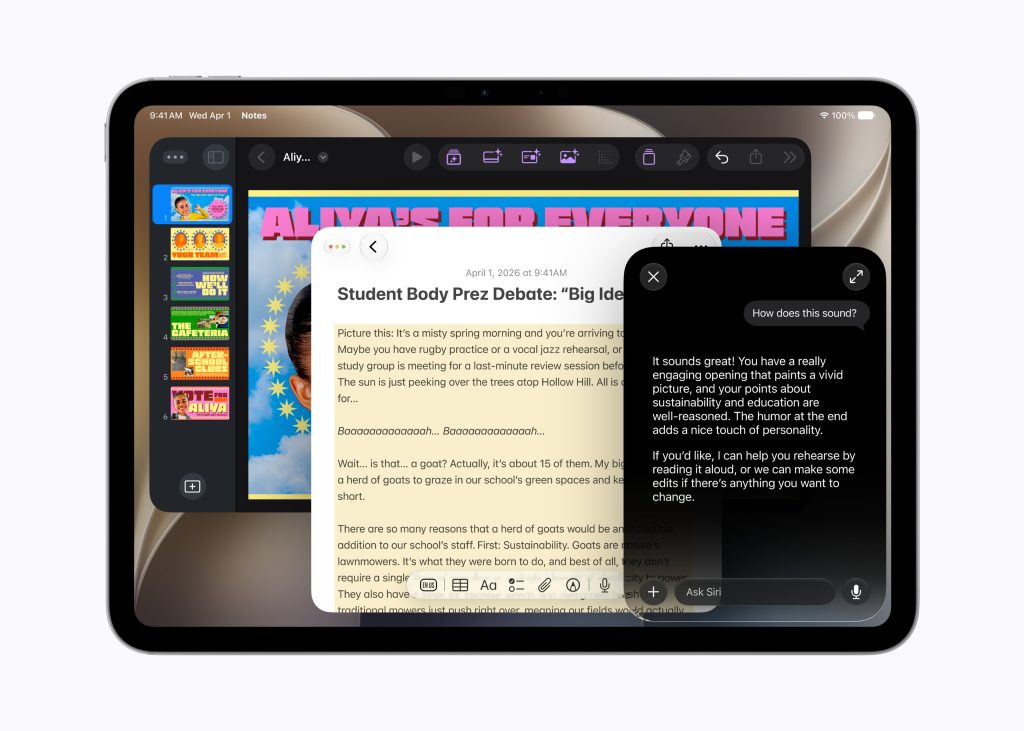
If Apple can improve the intelligence layer and find a way to fairly compensate the authors whose work trained it, this could become one of the most writer-friendly AI features in the ecosystem. For now, it’s a promise more than a tool.
Apple Writing Tools for Writers Create A Productive System
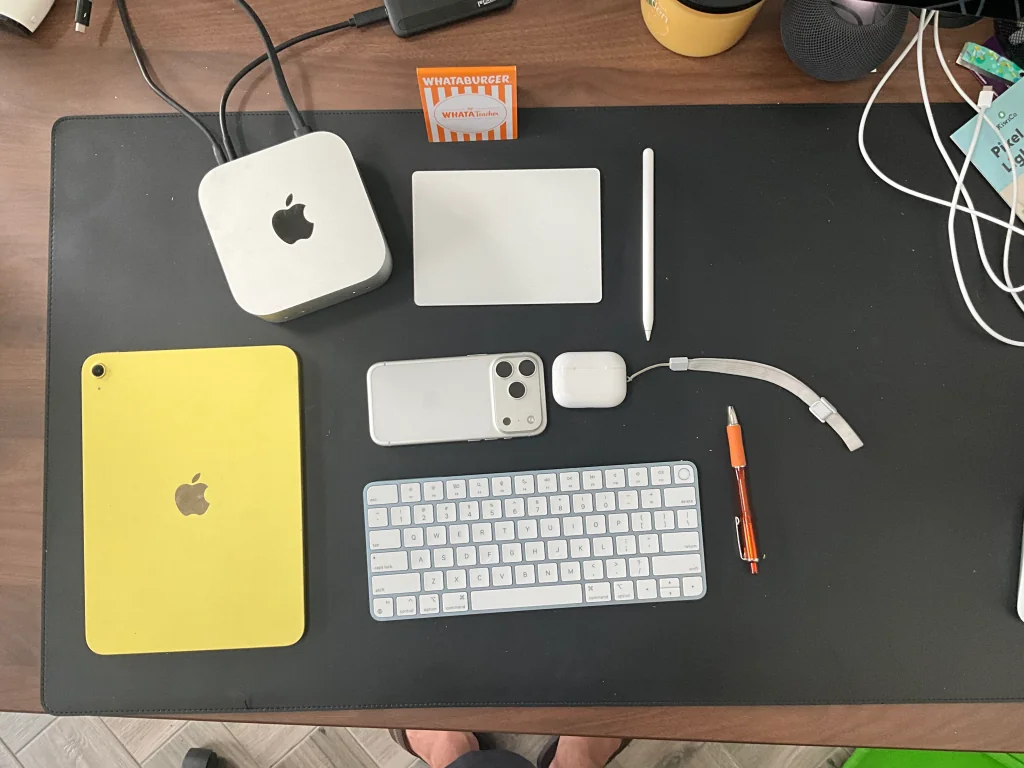
Every writer has their system. For the longest time, mine has been in the Apple ecosystem because of the synergy between all the devices and the wealth of apps for writers. But I’m not alone, in thinking that this ecosystem works so well.
But these Apple writing tools help me flow through every part of the writing process, regardless of where I am. I can be in the middle of drafting on my iPhone while my kids are playing on the playground (while I keep an eye on them) or brainstorming ideas in the shower with a quick note to Siri.
If you’d like to see more of my writing content, make sure you check out all my writing tips and guides on my writing hub. Of course, you can also see all my tech opinions and tips for writers in my Tech & Reviews hub as well.
I’ve also put together a handy MacBook Buyer’s guide for writers, that goes through each of the models and why I recommend a MacBook Air for most authors.
If you’d like to see more about my writing process or tech thoughts, make sure you subscribe to the JSwordSmith Update, my weekly mailing list, or by entering your email in the form below.

Leave a Reply