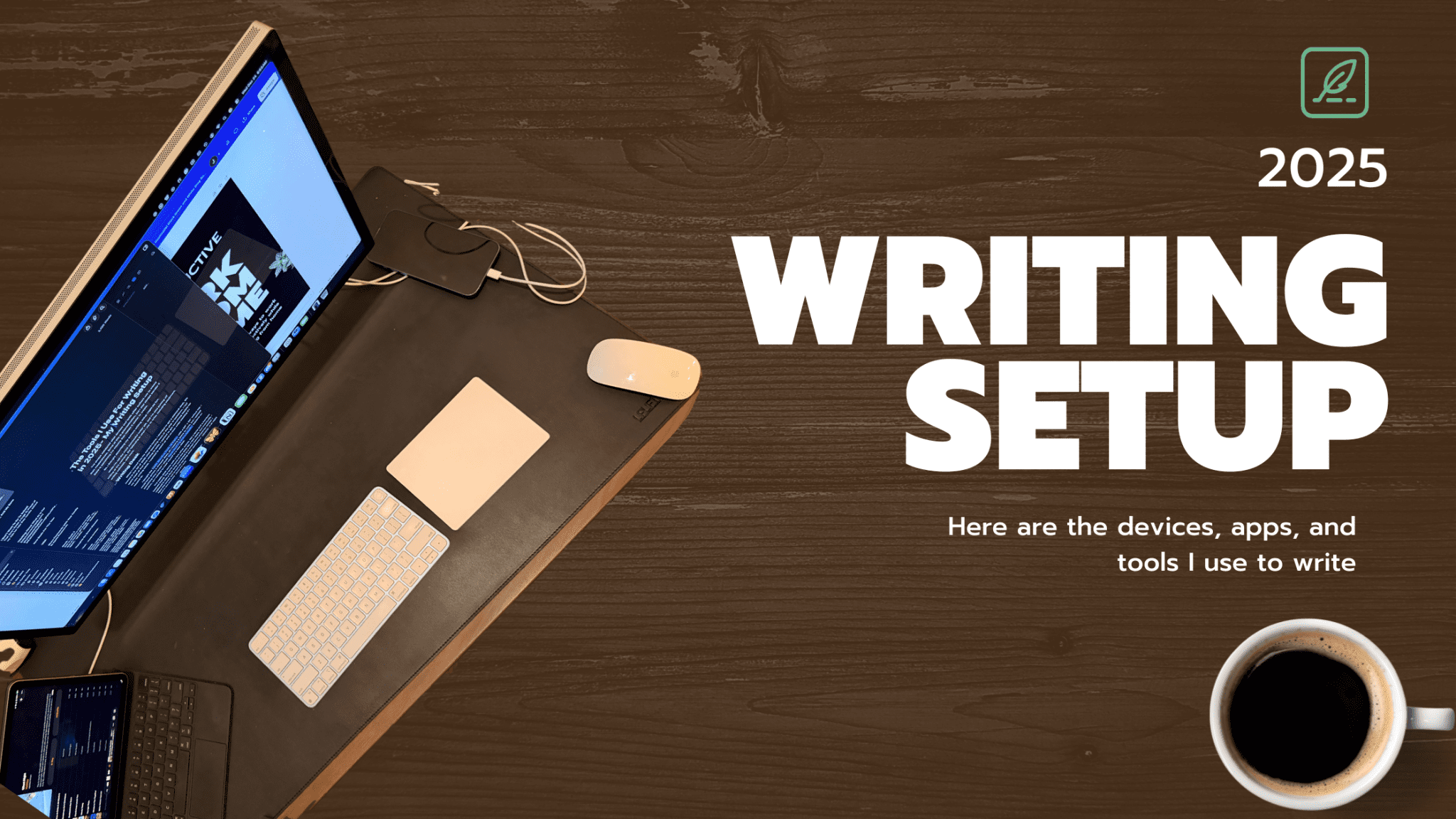
I’ve always wondered what devices and tools other authors use to create their masterpieces. Some of this is procrastination, but I also always wonder if there is something I’m missing that makes it easier to create.
So, I thought describing my current writing setup might be fun.
While I’m not the most successful writer yet, and I’m also putting off writing at the moment, the following is what I use to write, including equipment, writing software, and more.
Writing Desk

When I moved into my current home, I decided to get a sit/stand desk. We moved in the fall of 2020 after spending most of the year in lockdown. I had spent most of that time sitting to write. I wanted to get something flexible for my new writing setup. I wanted to stand up and stretch while working if I needed to.
I bought the Uplift Standing Desk V2 frame with a 60″ x 30″ walnut top. I could have gotten a cheaper desk; all I need is a place to work, but I wanted something nice. I knew I would leave teaching and eventually become an author, so I wanted to treat myself to a nice desk.
The Uplift desk included a few other extras, such as a lamp and a bamboo balance board. The lamp stayed on the desk for a few years, but eventually, I replaced it with a floor lamp connected to a smart home presence sensor. I have the sensor set to turn on my lamp when someone is in the room at night and in the morning, when it’s dark.
While my life took a turn I didn’t intend, I found my writing time minimal for a few years. I didn’t really get to use the desk in stand mode until the fall of 2025, since my kids started day programs. Now, I get a few uninterrupted hours to write. During that time, I set the desk up high and break out the balance board. It feels like it takes a little pressure off the knees and lower back
Assembling the desk took some time, but the instructions made it easy.
Most of the time, the desk is in the sitting position. I love that the height is adjustable even while sitting. With a touch of a button, I can raise or lower the desk to almost any position. That lets me shift my position while I’m writing. After a particularly long stretch at the desk, it is nice to be able to stand up and work.
M4 Mac mini And Apple Studio Display
After putting some time and effort into making my 2019 iMac last as long as possible, I sold it and bought an Apple Studio Display on a VESA mount and an M4 Mac mini.
Apple Studio Display

I haven’t written much about the Apple Studio Display, and there’s a reason for it. I think it works really well with Macs, but it doesn’t do much that my iMac did. It’s the same screen size and resolution, but the Studio Display has P3 wide color with True Tone, which my iMac didn’t have. The Studio Display can also get slightly brighter.
Outside the screen, it has a better FaceTime camera, although I rarely use it. It is still nice to have. It also has better audio quality, so I don’t need speakers as I did with my iMac. Apple also claims the Studio Display has better microphones, but I haven’t tested that much. Maybe, in the coming year, I’ll do more podcasts to try it out, but my office echoes a lot, so it’s not great for recording.
I bought my Studio Display used during a major Amazon sale, so I saved a lot of money. I highly recommend the screen, but I’d wait for a sale, as I think it’s a bit overpriced.
I chose the Studio Display because the iMac currently comes in only one size, but I also wanted versatility. With this display, I can plug in my Mac mini, my M2 MacBook Air, my iPad Pro, or even my iPhone. Also, I can update different parts of my workstation as I need. If I need a new CPU, I can get that part of the system.
Jarvis Single Monitor Arm

When I made the move to the Studio Display, I also wanted a VESA mount so I could move my screen around. The standard Studio Display stand is fine, but it offers few options. The more expensive stand looks fantastic, but it costs so much money. I found the VESA mount offered the most flexibility at the best price.
I went through a couple of cheap Amazon arms before settling on the Jarvis Single Monitor Arm. Having never used a monitor arm before, it took a little while to get used to it. When I get into the flow, and I’m typing like a maniac, the monitor wobbles, and I don’t like it. I’ve done all I can to mitigate it, but I think the wobble is just a byproduct of a standing desk and monitor arm.
But I can get past the wobble because I can put the monitor in any position I want. It helps to move the monitor around when I stand up to work.
I save a lot of money going this route, but I wonder if I would prefer the Studio Display’s tilting stand. If I ever update my monitor, I’ll have to weigh my choices.
M4 Mac mini

I mentioned in my M2 iPad Pro review that I got some money back I had lost on a crypto investment. Some of that money also went into my new M4 Mac mini.
I bought the standard M4 version because I don’t code or edit videos anymore. I don’t need a ton of speed to get writing done. Other than that, I do a little photo editing to creatfe banners and social media images. The M4 is plenty fast for everything that I throw at it.
I customized it with a terabyte SSD and 32 GB of RAM. I want this Mac to last me a while, and I want to store as much as I can on the device itself. With these upgrades, I feel that I’ll be okay for a while. In fact, I think the 32 GB of RAM is overkill for what I do. However, I have had some hang-ups with the system since macOS 26 came out. I think those are getting smoothed out with app updates and macOS updates.
I use an Apple Magic Keyboard with Touch ID in blue. I bought it refurbished from Amazon and haven’t had any problems with it. I know many writers live by the keyboards with keycaps and hate the Magic Keyboard, but I like it. Plus, it is the only keyboard with Touch ID. I don’t want two keyboards floating around, nor do I want to mount one under my desk, as some have done.
I also have a Magic Mouse and Magic Trackpad. I mostly use the trackpad, but both work fine for me.
I love that Apple has done much to improve the interaction between the Mac and the iPad. Most of the time, my iPad Pro sits beside my iMac, ready to use. With Universal Control, I don’t have to take my hands off the Magic Keyboard or trackpad. However, I need Apple to fix a few lingering issues with Universal Control. Universal Control stops working entirely if another user is signed into the Mac.
MacBook Air M2

My other writing device is a Space Grey M2 MacBook Air. The machine is fast and easy to carry. I miss the wedge shape of the older Air design, but this laptop is so light that it hardly matters. The words flow quickly; The keyboard is responsive and feels good to type on.
I love the MacBook Air’s portability, and I have never run into a program or file I can’t work with on this machine. Since I’ve been home more, the laptop only gets used when I think I can sneak in a few minutes of work while the kids are occupied, or when it’s really nice outside.
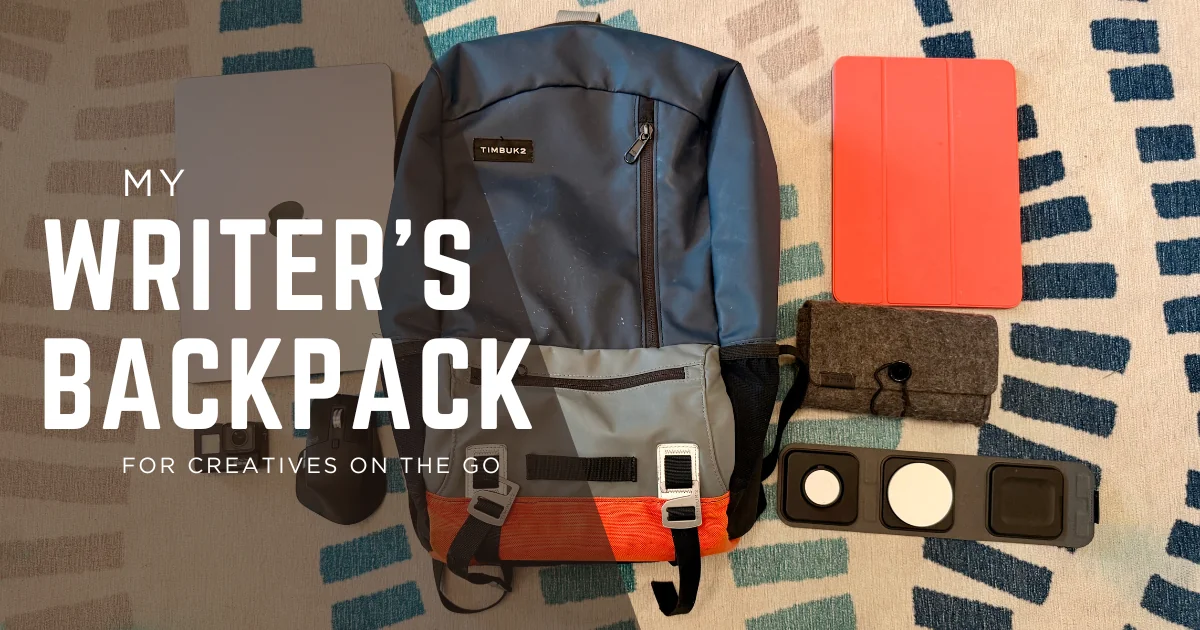
I don’t take this on trips with me, though, unless I know that I’m going to have some time to really write. For the most part, I can write on my iPad as well as my Mac, but it’s a pain to edit on the tablet. If I know I’ll have to edit, I’ll try to make room for the MacBook. Strangely, the iPad feels more replaceable than the MacBoom, even though they’re almost the same price.
The screen is bright, and while I would love the MacBook Pro’s high refresh rate, I don’t think I need that much power. Also, static words on the screen don’t need frequent refreshing. I like the MacBook’s smaller screen when I’m in the creative zone. It limits me far more than the iMac does, and my focus tends to stay on the app at hand rather than getting pulled away to check social media.
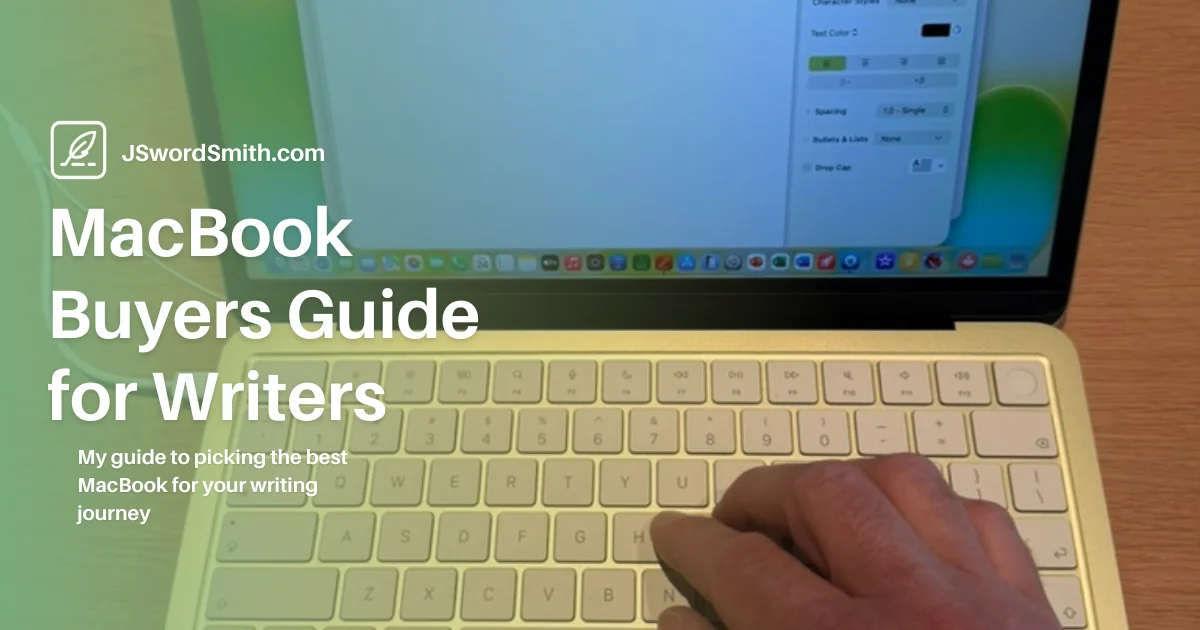
I’ve put together a handy MacBook Buyer’s guide for writers, that goes through each of the models and why I recommend a MacBook Air for most authors.
M2 iPad Pro

After four years, I finally updated my 2018 iPad Pro to the M2 version. Despite the M4 iPad coming out, I opted for the M2 because it was faster than what I had, plus I wouldn’t have to buy all new accessories like the new Magic Keyboard.
My iPad doesn’t get as much use as it once did. I default to taking my iPad out because it feels smaller and somehow more replaceable.
I read on my iPad every day. I also like traveling with my iPad more because there are more apps for content than on a Mac. I haven’t found a good way to download the shows I’m watching for when I’m on a plane and don’t have access to the internet. I’d be interested to see how my usage would change if these apps came to the Mac. The iPad is so easy to throw in my bag and go.
I like writing on my iPad because it feels even more focused than my MacBook. I struggle to edit on the iPad, though. While the iPad has gotten much better at text input, you still need an input device to take advantage of it. I also use Grammarly on my Mac to help me proofread (shocking, I know sometimes), and it is not as easy to use on the iPad. You have to detach your iPad from a keyboard to open the Grammarly keyboard and check your text in my preferred writing app. Otherwise, I have to move my text to the Grammarly app, then to a third location when I want to publish it.
But I love iPadOS lately. The system feels much more versatile.
iPhone 17 Pro
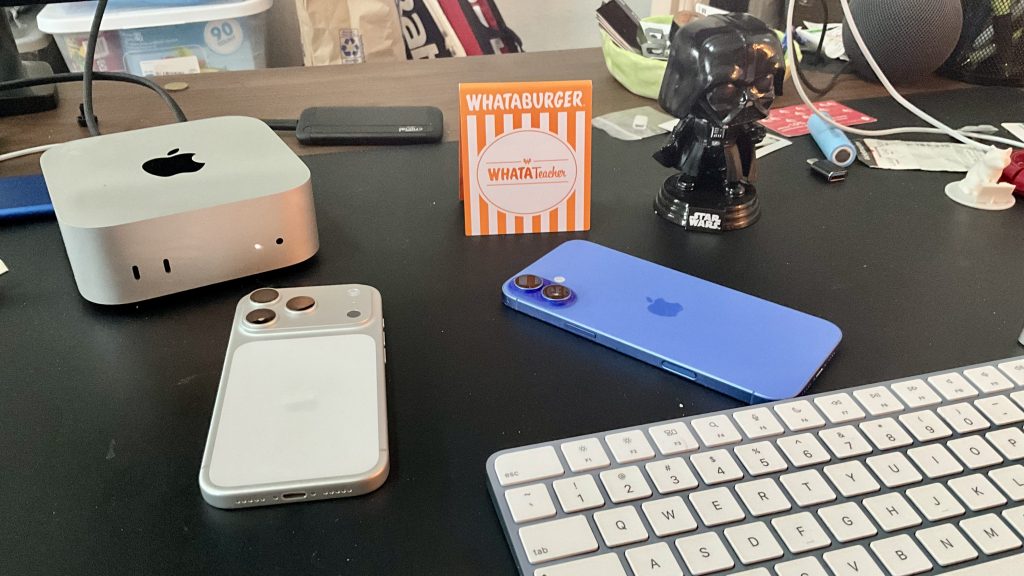
Most recently, I added an iPhone 17 Pro to my toolkit. I spent the last few years with the larger iPhone model (last year I had an iPhone 16 Plus), but this year I downsized to a smaller screen.
I spent a lot of time trying to find the best way to type on my iPhone, and I discovered that the larger iPhone wasn’t the best option for long periods of typing. The Pro size feels much better to type on for long periods.
The iPhone has been useful for quick sessions or when I’m stuck on the couch with a sick kid, but I’d rather use my MacBook to write. Also, it took a while to find the right software to make it all worthwhile to me.
I miss the larger iPhone’s battery life, but everything else works great on this phone. It never slows down, rarely overheats, and takes excellent pictures. I’m not sure that I genuinely needed that much power, but I’m planning on using this phone for a long time.
Software
For writing, my app usage has changed dramatically since I wrote the first version of this article. Before, I used Scrivener to plan and write my (attempted) novels, Final Draft for screenplays, and Safari to write in WordPress for the blog.
I grew tired of some aspects of Scrivener, like syncing. When I needed to work on my phone, I had to wait forever for all the files to be synced. When I reached a point where I could work, my inspiration or time would be gone. So I needed something new. I tried out NovelPad for a while, but they don’t offer apps; it is all browser-based. It also has issues, which made it not fun to work with.
After a short stint writing for MakeUseOf.com, I was encouraged to find a Markdown text editor for my content. So, I explored some of the Mac options. Knowing I was leaving teaching and a steady paycheck, I wanted something cheap. I started writing my blog posts in Obsidian, which worked great for them and would probably work well for most of my writing since it is so flexible. But I also tried Ulysses, and since then, it’s been my go-to writing app for blog posts and novels.
Ulysses

It took me a minute to get hooked on Ulysses. I was so used to Scrivener that anything else felt weird. But once I started writing more in Markdown and used it more, it became hard to write anywhere else.
Ulysses keeps all my writing in one place. I don’t have to look for files anymore because everything lives in the app. It has a library, like the binder in Scrivener, but it holds all your writing. In the library, you can make folders and organize your writing. You can also create projects, a place to keep your current longer works. Inside each folder, you can make as many sheets as you want.
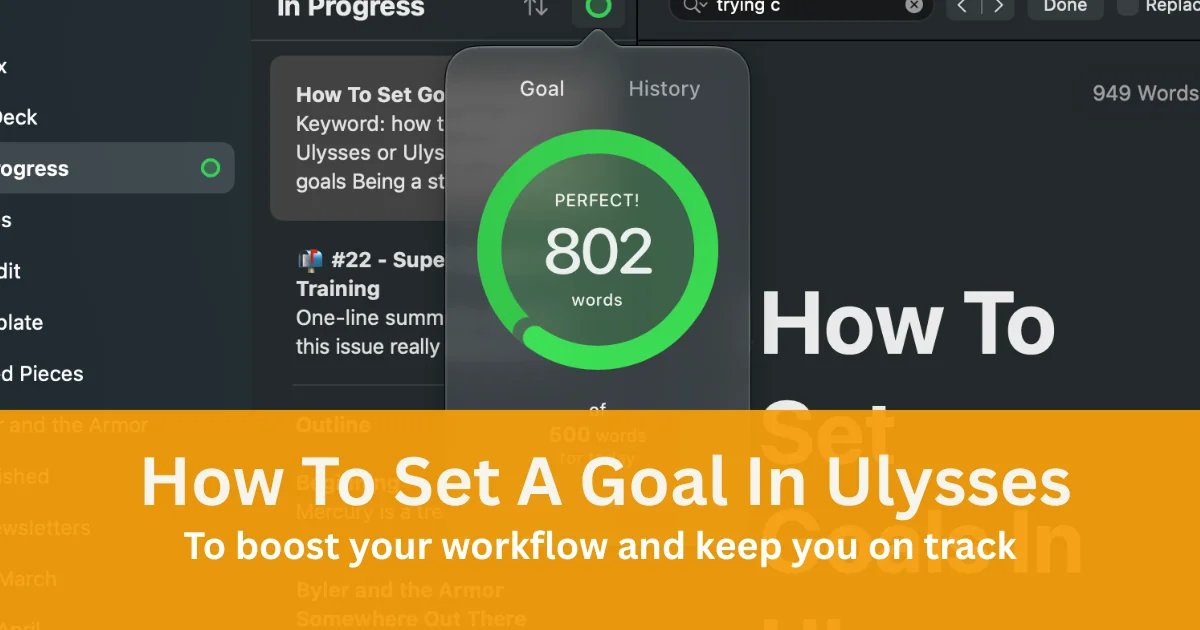
I’ve written about my process of using Ulysses to write my blog posts.I’ve also written about how I set writing goals inside the app.
Once you’re done with your project, you can export it to several file types, such as doc, pdf, or epub.
While you do have to learn Markdown to get the most out of the app, it is pretty easy to understand. Now, I’m so used to it that I’m not sure I could work in a different word processor style. One feature I love about Markdown is that I can leave notes in line. I use two plus signs in a row and leave myself a note for revisions later. The text changes color, and you get a link to it in your right-hand sidebar.
Syncing works lightning-fast with iCloud, and there are apps for my Mac, iPad, and iPhone. They have also embraced Apple’s new design language, Liquid Glass.
The only drawback I’ve encountered so far with Ulysses is the subscription model. Ulysses is subscription-only. Ulysses offers a steep discount for students and teachers. However, the regular yearly price for the software isn’t too bad at $40. Usually, this isn’t a bad price, and it makes sense to keep supporting software you like. However, subscription fatigue is real. If I decide not to pay the price, I would probably go back to something like Obsidian.
If you’d like to try out Ulysses, let me help you out. Sign up here for a 25% discount on Ulysses. Also, check out my Guide to Ulysses, that I’m updating every month, to find out how to get started or learn some tips and tricks.
Final Draft
The only thing I haven’t been able to do in Ulysses is write screenplays. I haven’t spent much time on them lately, so if it hasn’t been a problem, once I get an idea for a screenplay, I use Final Draft.
Final Draft offers Mac, PC, and iOS versions. Syncing is super easy. I’ve just used iCloud to store all my saved files. I’ve never had a problem.
I know there are other options, like FadeIN, but I’ve had a nice workflow with Final Draft. Like Ulysses, there are plenty of ways to help plan your screenplay here. I like BeatBoard for planning things out. The BeatBoard is like a giant whiteboard I can throw anything onto and move around. It helps me visualize the story
Final Draft offers a plethora of templates to choose from, even beyond screenwriting. They even have options for writing a novel. The iOS version of the app works well and includes an editing mode, unlike most writing apps I’ve tried.
Grammarly
For grammar and editing feedback, I subscribe to Grammarly. Grammarly has an app that follows you wherever you type, and sometimes it gets in the way. However, you can drag it around. When I’m writing, usually in Ulysses, Grammarly checks me as I go, which I don’t always like. It will highlight minor errors that need fixing, just like Word might if you misspell a word.
Grammarly has evolved a little over the past year. Instead of offering deeper suggestions when you open the floating panel, Grammarly now highlights everything and, for the most part, moves the window off the screen. Opening the Grammarly window now brings you to an AI robot.
I’m not a huge fan of AI creating content, and I avoid it wherever possible, but I do like having an extra set of eyes on my work, and the Grammarly AI does that. You can also move your work over to their website where they offer an AI edit which will highlight weak spots or compare you to other authors and how they might tackle that line.
It’s an odd feeling because it can work to help you improve, but you are also donating work to the AI overlords. For me, I don’t have many people who lend extra sets of eyes to my work, so it is nice to have when I need it. However, I don’t depend on it.
Oddly, I haven’t been able to log into the Grammarly website on my iPhone or iPad. I can open the app on both, and the iPad version does over some editing services, I would prefer to have access to the website on those devices. Having that could improve my editing flow on the iPad.
AI
As I mentioned previously, I don’t like AI for creating. I don’t like how the big AIs have gathered data. There is a lot I don’t like.
But it can be helpful.
I have used ChatGPT some this year to help me create a content and marketing publishing calendar. I’m not sure it gave me that much success, but it did help me get started.
I would much rather get to the point where I can pay someone to do what my AI does now, but that time isn’t here yet.
I don’t like the impending apocalypse of our robot overlords. I want to keep humans in business. But I haven’t gotten to that point yet.
Future Setup Goals
For the first time in a long time, I’m very happy with my setup. I don’t see myself changing things up anytime soon. In fact, I’m trying to make all my tech last longer than I have in the past.
That said, I’m always looking for new software to help me. I’ve started using Notion to help me organized and keep links for all my stuff across all my platforms. It’ has definitely helped me out, but I’m not sure I’ve mastered it and I’m not sure I’m keeping it forever. What happens when they change the free account there? I’m not sure I can afford the paid tier.
Also, I’m interested to see what the future holds for the Apple Vision Pro. Using smaller screens helps me focus more, but what about a screen that could be anywhere? What about being able to block the entire world out? The Apple Vision Pro uses your eyes to track your movement around the system, so would that increase my focus? There are so many questions I need answered about the device, but I will have to wait.
Another thing I want to look into is recording audio. I’ve been on one podcast this year, and I’m scheduled for another one soon. I would love to do more. I have also thought about recording an audio version of my work. I might need to research and invest in some recording hardware and software.
What’s Your Writing Setup?
That was a look at my writing setup, software, and other apps I use. If you came here looking for inspiration, I hope I helped a little. Just remember, there’s no one right system. You have to find what works for you. Try out some apps and systems, and you’ll find your flow.
Check out all my writing tips, exercises, and guides over at my writing hub to help you jump start your writing.
As always, make sure you’re following the site on Facebook and Threads. Also, sign up for the mailing list to stay up to date on all the happenings here. Make sure you subscribe by entering your email below, and get new content delivered straight to your inbox.
Thank you so much for making this all possible.
What is your writing setup like? How do you like to write? Have an app I should try out? Let me know that as well.
Leave a Reply